
Choose what information you would like to see when viewing the Schedule!
.png?width=688&height=192&name=Screenshot%20(384).png)
Step 1: Click 'Customize View' button
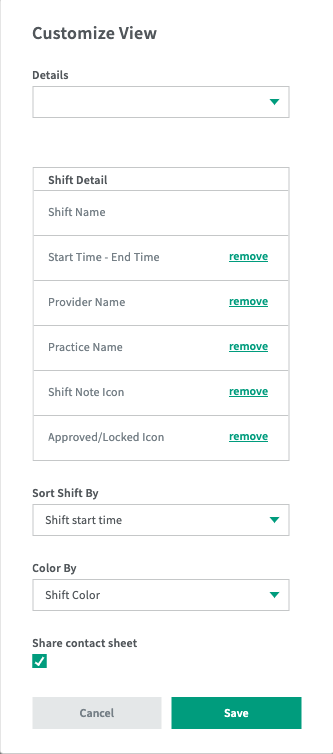
Step 2: Use this modal to choose how you would like to view your calendar.
The details drop down will allow you to choose what information is shown on the Schedule.
Shift Name will be the only detail that cannot be removed from the view.
Remove (or add back) the following options:
- Start Time - End Time
- Start Time
- End Time
- Provider Name
- Practice Name
- Practice Code
- Shift Note Icon
- Approved/Locked Icon
- Day/Night Icon
You can also select how your shifts are sorted by: shift start time, shift template start time, and shift name.
Select to 'Share contact sheet' to share contact information for those who are on the Schedule
Once you click save, the modal will close out and your schedule will reflect the information you selected above.
If you choose to have 'Share contact sheet' on, a calendar/contact toggle will appear on the Schedule + Shareable Links created with that view. This view will show who is on the schedule for the month with their phone number, email, and the dates they are working.
**Please note that the phone number and email are pulled from the provider profile so that information will need to be filled out in order to appear here**

Shifts are color coded based on the Staffing Model.
To learn more about that, click here: Edit your Staffing Model
You can also apply the customizations to your Shareable Links.
To learn more about that, click here: Shareable Links