Share your schedule with others outside of Kimedics using Shareable Links!
View Customize Your Calendar to learn how to choose what information can/cannot see in a shareable link.
1. Go to the Schedule..png?width=688&height=123&name=Screenshot%20(215).png)
2. Filter the Schedule with the information you are wanting to share.
.png?width=688&height=104&name=Screenshot%20(228).png)
3. Click the Actions Button > Create Shareable Link
.png?width=688&height=108&name=Screenshot%20(229).png)
4. A modal will appear for you to review the filters you have selected and allow you to name the Shareable Link.
.png?width=458&height=466&name=Screenshot%20(221).png)
5. Once you click Create a Link, a second modal will appear with the link you can share with others so they can view a public version of the schedule. Anyone with this link will be able to view this information.
.png?width=642&height=338&name=Screenshot%20(230).png)
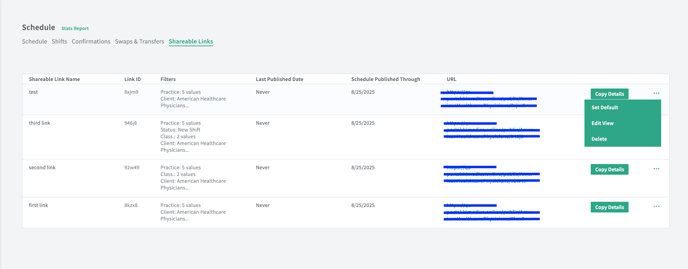
6. You can view all Shareable Links you have created in the Shareable Links tab. Here you are able to view each shareable link created, the filters used for each link, the last published date, and the scheduled through date. You can copy the link details here or delete a sharable link once it is no longer needed. You can make calendar view edits from this page as well.
Users who have more than 750 shifts on their calendar in a month will be able to set a 'default' view to land on when navigating to the schedule workspace. This will be set at the user level so every user could have a different default that they land on. To set a default, click the overflow dots and select 'set default'. If one is not set, Kimedics will default to the first shareable link created.
*If an organization has 'publish schedule' turned on for schedule sharing, the shareable link will only show shifts that have been published.
7. Using the Sharable Link drop down in the Schedule will filter your calendar with the filters used for the Shareable Link.
.png?width=688&height=271&name=Screenshot%20(225).png)
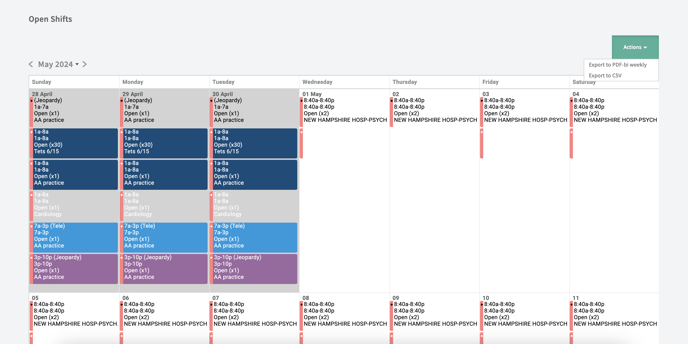
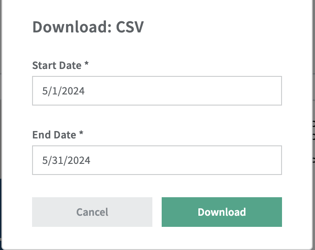
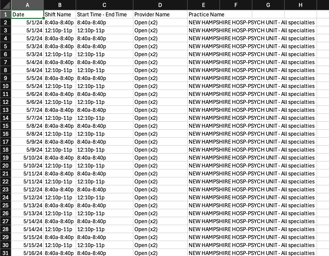
8. Those who use the Shareable Link will be able to READ ONLY the calendar that was shared with them. They will have the ability to download a bi-weekly pdf version of the calendar OR export the information to a CSV. A date range can be selected in both instances! Shareable links will be a live version of the calendar - if a Shareable Link is deleted, the calendar will no longer be accessible using the link.
*Please note that depending on your settings in excel, some shift times in the CSV may appear as dates in the start time-end time column. EX: 9-7 may show as 7-Sept.
Also, information for Contacts will NOT be pulled into the CSV export if that information is shown in the view.