Editing your default staffing model
1: Adding a shift
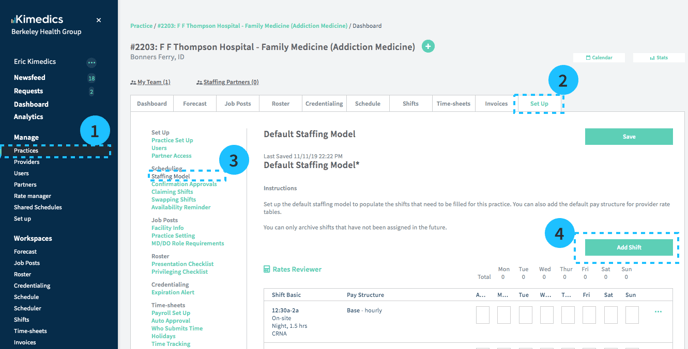
- Practices section on left sidebar
- Select Set up
- Select Staffing model
- Add Shift
- Fill in important information for that shift, including:
- Start/End Time
- Shift Color (this will show up on the Schedule view)
- Credential Accepted
- Pay Structure, including
- Base Pay
- Over-time
- Call Pay
- Call-In Pay
2: Defining pay structure
You can edit the pay structure of a shift any time from your practice/Setup/Scheduling/Staffing Model
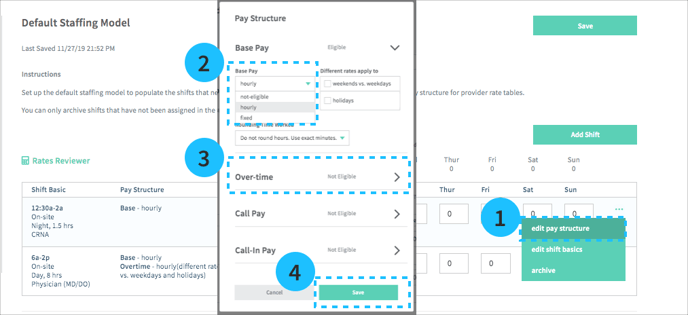
- Click ... overflow on the right of that shift's row, and select Edit pay structure
- Define Base Pay: Is it an hourly rate, fixed rate, or not eligible for this shift type?
- You can define Over-time, Call, and Call-in pay by expanding these sections and editing them the same way as you edit base pay (2).
- Save to apply changes
3: Open shifts by day
After you define your shift type, enter the number of open shifts for each weekday (e.g. "There are 5 open shifts of type 7a-7p on Mondays, Wednesdays, and Fridays").
Importing open shifts to the schedule
Open a practice schedule and select Populate Staffing Model (see 1 below).
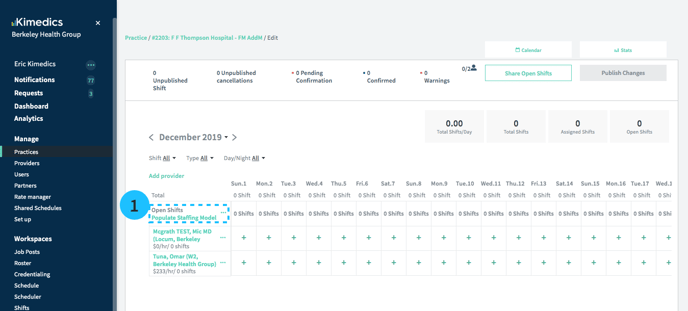
Importing a staffing model (i.e. how many open shifts of each type per day)
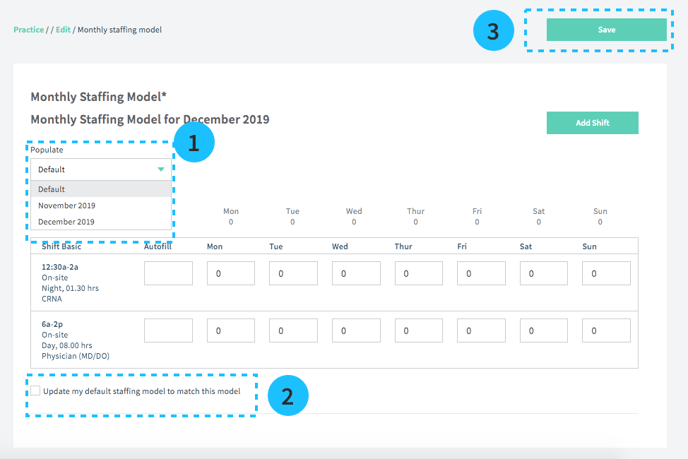
- In the Populate field, select whether you want
- the default staffing model (the one defined in Practice/Setup/Staffing Model)
- a previous month's staffing model
- create a custom staffing model
- If you want the custom staffing model to become the new default, select Update my default staffing model to match this model.
- Save and you will see open shifts updated on the schedule for this month.