
My Schedule (List)
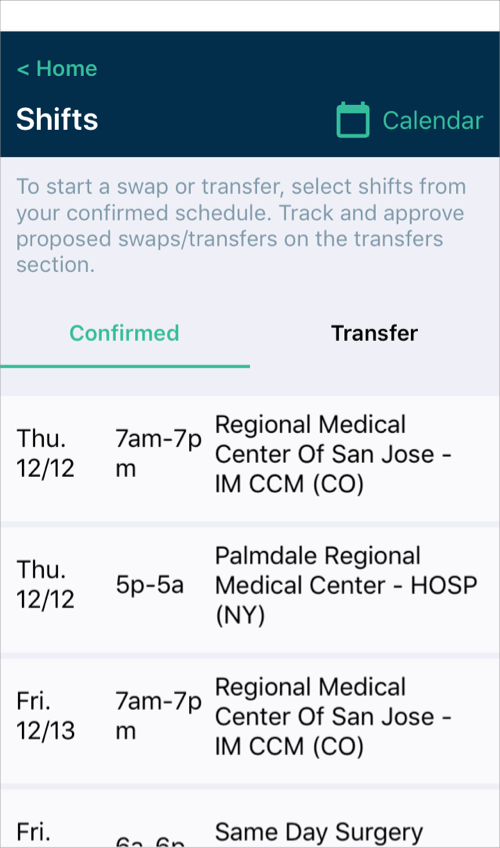
This view shows a list of your upcoming shifts. It is also where you can request a transfer.
How to view
From the home screen, tap My Schedule
My Schedule (Calendar)
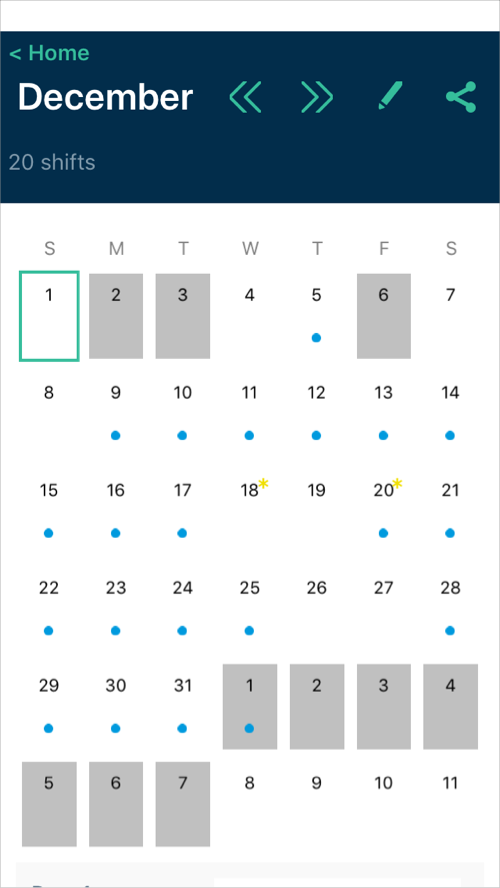
This view shows a monthly calendar view that includes availability and scheduled shifts.
How to view
From the home screen, tap My Schedule. Then tap Calendar on the top navigation bar.
Availability
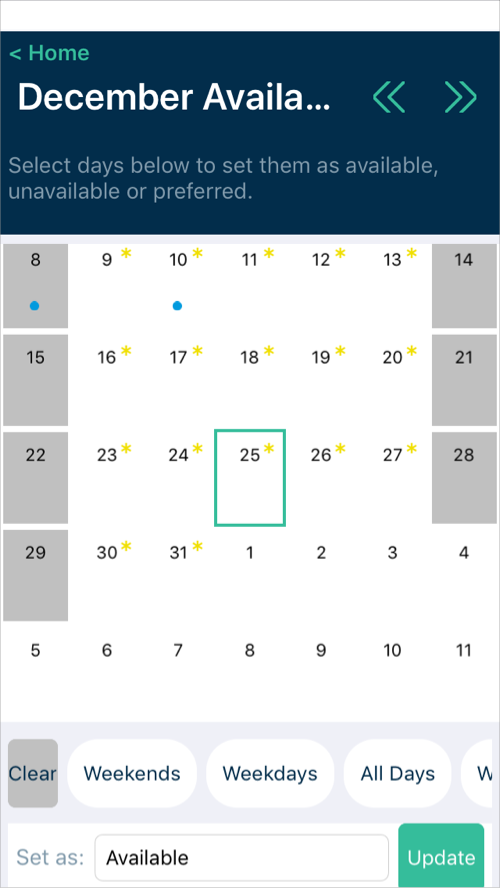
This view shows your daily scheduling preferences. Each day can be marked as:
- Available (white background): You can work this day
- Not available (grey background): You cannot work this day
- Preferred (*): You prefer to work this day
- working (dot): You have at least 1 shift scheduled this day
How to view
From the home screen, tap Availability
Team Schedules
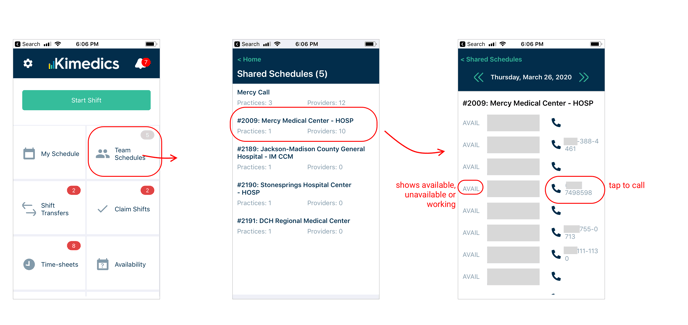
Team schedules show you who is working/not working on a given day and their phone number. You can be added to team schedules by your organizations.
Tip: Use the left and right icons to change the date, or tap the date directly to select any date.
How to view
From the home screen, tap Team Schedules. Then tap the team you are interested in to see who is working that day.