Opening the schedule (one practice)
- Select Practices from sidebar and select your practice
- Schedule tab
- Edit Schedule
Opening the schedule (all practices)
- Select Workspaces/Schedule from left sidebar
You can assign shifts, edit shifts, or remove shifts from this space.
Click the shift you are wanting to update and use the right bar that appears to make your changes. .png?width=688&height=329&name=Screenshot%20(266).png)
Before you can assign shifts
1. The provider must be on the roster.
Only provider's with status "Pending Privileges", "Temp Privileged", or "Ready-to-Schedule" will appear on the scheduling page. If you don't see the provider you need, select "Add Provider".
2. Shifts must be defined in the practice's staffing model.
Before you can schedule a shift, you must define it in your staffing model.
3. The provider should have rates defined for this shift.
Adding open shifts
We recommend you set up a staffing model to quickly fill in open shifts for a month.
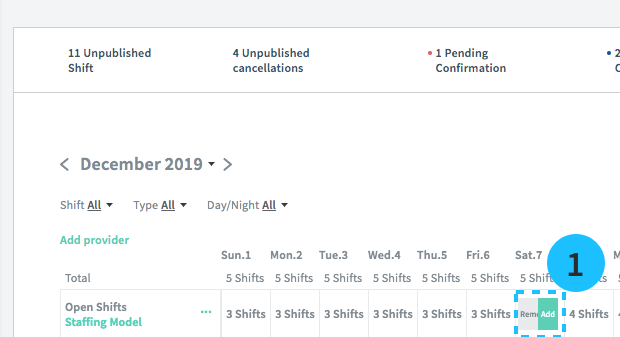
You can also add or subtract individual open shifts for a given day by clicking the Open Shifts row on that day (see 1 below).
Sharing open shifts
You can share open shifts directly with providers who use Kimedics.
Provider availability on the scheduler
Providers can upload their availability to Kimedics or you can edit a provider's availability directly.
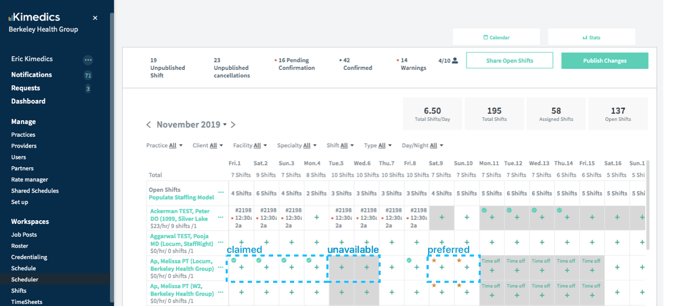
This availability appears on the calendar to help you make scheduling decisions. Days can be:
- Unavailable (grey background)
- Available (white background)
- Preferred (yellow star)
- Time off (Learn more about tracking Time off)
See example below.
Assigning a shift
If you have your providers and shift types defined, you're ready to assign shifts!
You can assign any shifts defined in your practice. If you assign an open shift, the number of open shifts for that day will decrease by 1.
Assign shifts by clicking a day (or dragging to select multiple days) and selecting from your practice's shifts in the dropdown.
Removing a shift
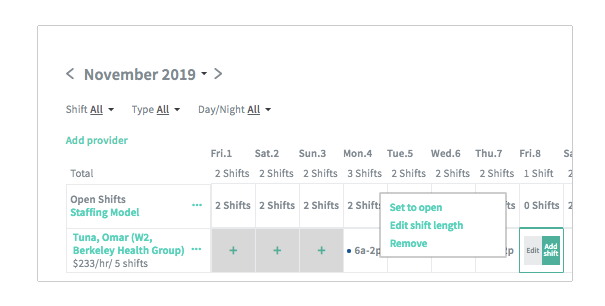
First, click to select a day with a shift assigned and then click "Edit" on that date. To delete the shift, you have two options:
- Remove: Open shifts count will not change.
- Set to open: This will add an open shift for the day.
You can also drag across multiple shifts to edit them all at once.
Publishing your changes
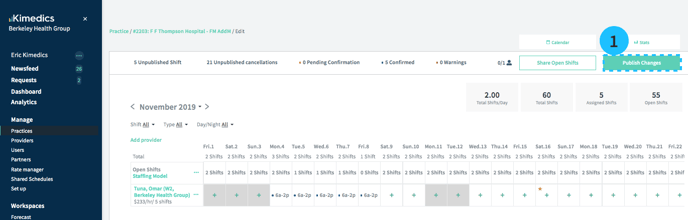
Publishing your changes (see 1 above) sends an alert to members of your practice and providers who are using the Kimedics app with changes to their schedule.
Warnings
Warnings let you know if something looks off with your schedule.
Confirmations
For providers who require confirmation approvals, the schedule is automatically synced with their confirmations.
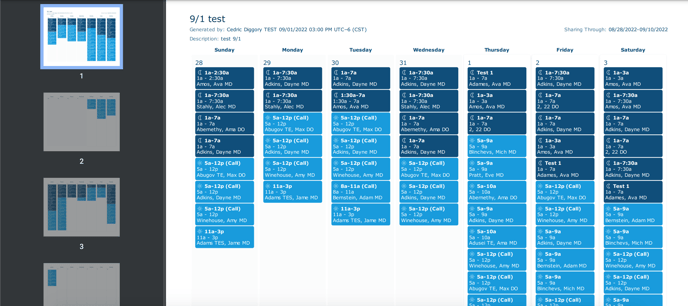
Download a PDF calendar
.png?width=688&height=322&name=Screenshot%20(264).png)
You can download a PDF for calendar view or bi-weekly view.