Who can take bulk actions?
Only administrators and practice managers will be able to make these actions in bulk on behalf of their organization/practice.
How to use your Users Table
The Users tab shows all users in your organization with each user's access permissions. Make sure you have the right setting selected in your practice access-to either (1) allow users access to all practices or (2) select users have access to select practices. See Practice access setup.
The columns in the table will show a users practice access and related facility, state, specialty and client access. Clicking on the 'View All' will show all options.
-1.png?width=688&height=280&name=Screenshot%20(53)-1.png)
How does practices access relate to notifications?
Practice access matters because not only does it impact a user's visibility into practices that might not be relevant to their role but it also drives notifications about this practice.
Add, Replace or Remove Practice Access
Adding practice access
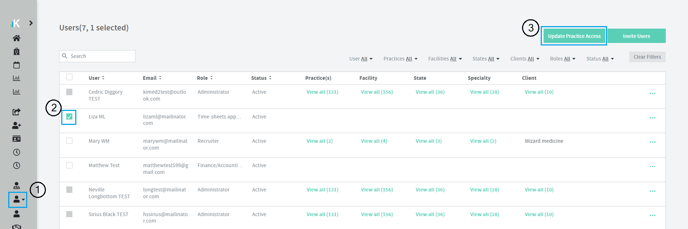
To add practice access:
1. Go to Users table
2. Select the user(s) you want to update
3. Click 'Update Practice Access'
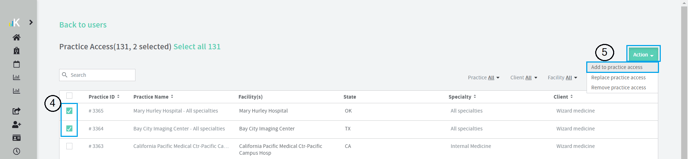
4. Pick the practices you want to add to their current practice access
5. Click 'Action' > Add to practice access
Replacing practice access
Replacing practice access means that you are completing changing the user's current practice access to the updated practice selection.
To replace practice access:
1. Go to Users table
2. Select the user(s) you want to update
3. Click 'Update Practice Access'
4. Pick the practices you want to replace their current practice access
5. Click 'Action' > Replace practice access

Removing practice access
To remove practice access:
1. Go to Users table
2. Select the user(s) you want to update
3. Click 'Update Practice Access'
4. Pick the practices you want to remove from their current practice access
5. Click Action > 'Remove practice access'

What is the difference between "adding practice access" and "replacing practice access"?
Add to practice access will only add practices to the existing list the user has access to while Replace practice access will update the users list of practices they have access to the practices you select.
Default Assignees help Organize Task Assignees and Update Workflows
Tasks assigned to users help organizations track where a task is in a workflow and who is responsible for advancing or completing that task. Assigned tasks show up on the User's Dashboard and creates a more customized Notification experience.
What is the difference between a Task and a Task Type?
Our Tasks Types are: Roster, Time and Pay, Time and Invoice
A Task is within a Task Type. An example of a task type is Time and Pay Approval - Provider Managing Org Approval, where the specific task is to approve time sheets in pending approval.
How to update Task Assignees in bulk
**note only users with permissions will be able to see the default assignees tab (administrators and practice managers)
-1.png?width=223&height=531&name=Screenshot%20(136)-1.png)
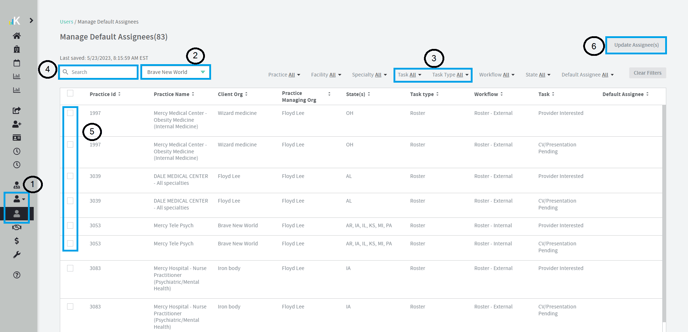
1. Click the Users workspace to access Default Assignees page
2. Pick the organization assignee you are updating. Practice managers can also use the View by drop down to view and assign Tasks for Partner organizations.
3. Most users normally find the task type or task they would like to update
4. Search and Filter: Filters allow viewing by specific Practice, Facility, Specialty and State as well as filter by tasks or workflow to view current Assignees.
5. Select one or all tasks you want to filter to
6. Click on the 'Update Assignee(s)' button (it will turn green once you have selected a task to update
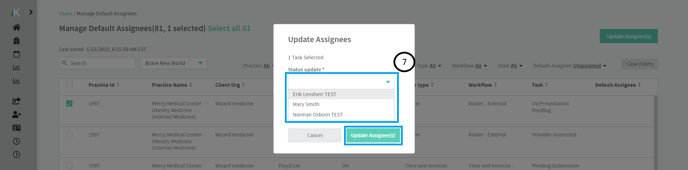
7. Once the modal pulls up, choose who you want to be the Default Assignee from the dropdown and click 'Update Assignee'
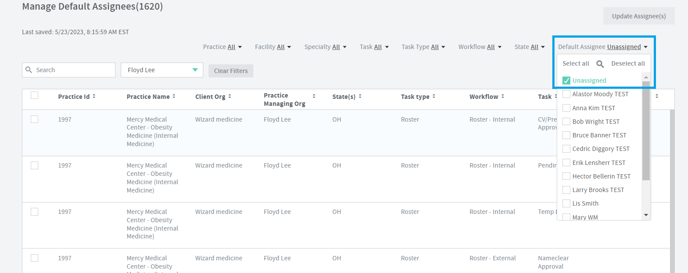
How to find your unassigned or missing Default Assignees
Find your filter at the top for "Default Assignee" and select "Unassigned". This will show you all tasks that are unassigned or missing a default assignee.