How to resolve warnings
- Provider is under capacity/Provider is over capacity
- Provider assigned to shifts that do not match their credential
- Provider is working more than 7 shifts in a row
- Missing rate table setup
- Pending privileges
- State license expiring
- Privileges expiring
Provider is under capacity/Provider is over capacity:
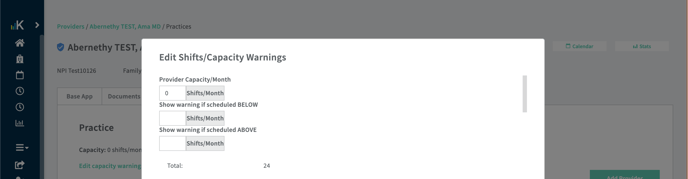
There is a mismatch between shifts scheduled and the provider's capacity. Either adjust the number of shifts scheduled or the provider's capacity.
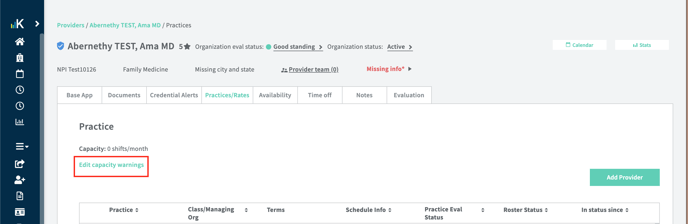
Edit provider capacity by selecting
- Providers table and select your provider
- Practices tab
- Edit capacity warnings
X shifts provider is assigned to that does not match provider credential
You see this error if the credential associated with the shift doesn't match the provider (e.g. an MD is assigned to an NP/PA shift).
Option 1: Edit the credential accepted for the shift 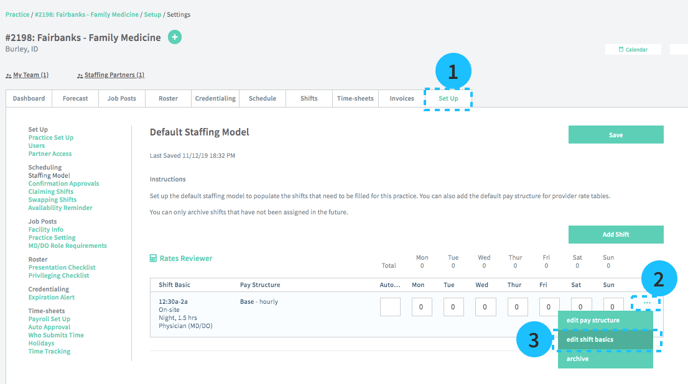
- Select your practice from the Practices table.
- Select Set Up
- Select Staffing model section
- Select "..." button for the shift
- Select Edit shift basics
- This popup will allow you to change the Credential Accepted for a shift
Option 2: Update the provider's credentials 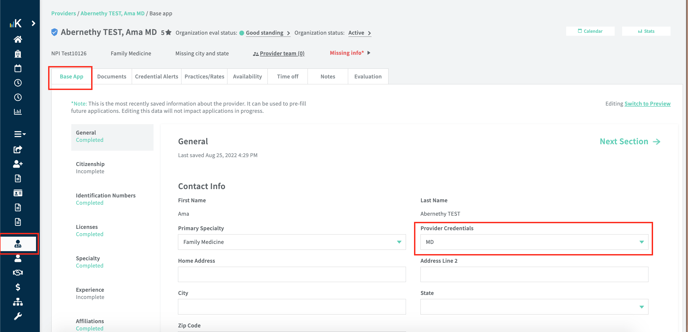
- Select Providers on left sidebar and select the provider with the error
- Base app
- In the General section, update the Provider Credentials field and save
Option 3:
Remove the shift.
Provider is working more than 7 shifts in a row
This warning appears when the provider has shifts on 7 consecutive days. You can resolve it by removing shifts.
Pending privileges
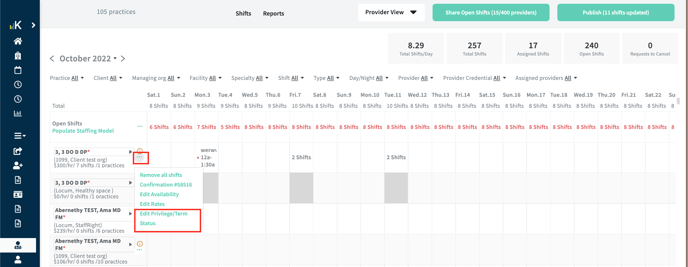
If the provider's roster status is Pending Privileges you will see a warning. This can be resolved by updating status to Temp Privileged or Ready to Schedule
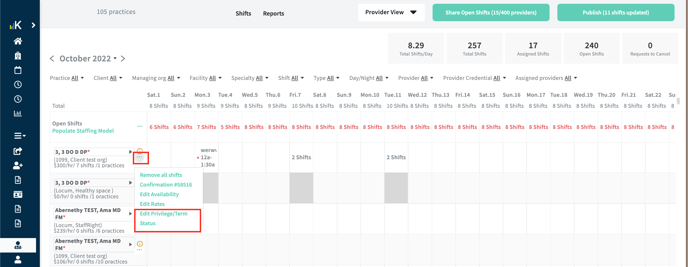
Tip: there is a shortcut to editing privileges from the schedule (see 1 below).
State license expiring
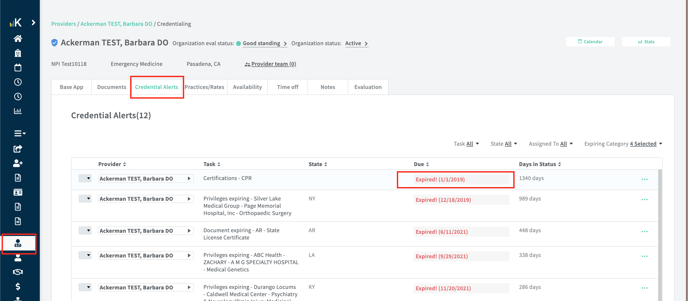
If the provider's state license is expiring in three months or sooner, you will see a warning.
To remove this warning, you need to add information for a state license that is not expiring in the next three months.
- Go to Providers and select the provider
- Select Credential Alerts tab
- Select a row to update that item.
Privileges expiring
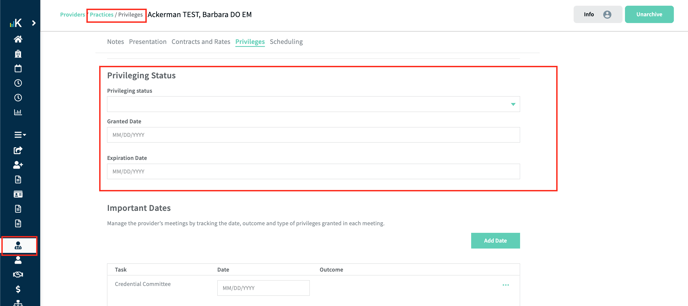
If the provider's privileging status expires in three months or sooner, you will see a warning.
- Go to Providers table and select the provider
- Select Practices tab and select the related practice
- Update information in the Privileging Status section and Save.
Tip: there is a shortcut to editing term status from the schedule (see 1 below).
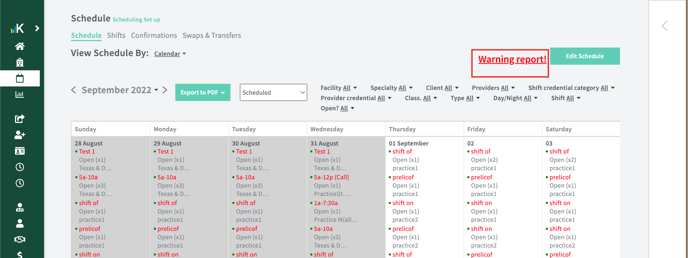
Warning Report
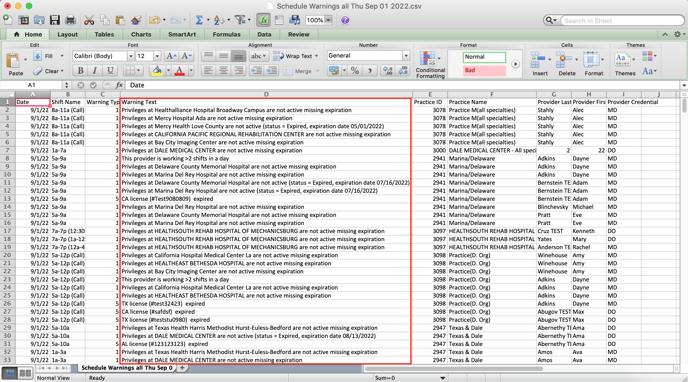
If warnings are present on a calendar, you will see a warning report notice in the top right section near edit schedule. Download the warning report to see all schedule warnings. This will include the practice, provider name, the warning, the shift the warning applies to, and more.
Example of warning report: