
Skip to content
  • There are no suggestions because the search field is empty.

Understanding Roster Statuses

Track providers through presentations and privileging

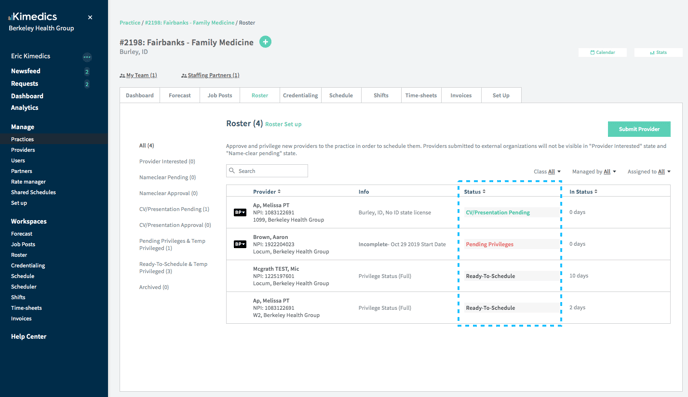
Here are the statuses you can assign providers on your practice roster:
understanding roster 1


Provider Interested: 
The provider is interested in the job post. No information is required at this stage.
Approving a provider from this status moves them to:
  • Pending nameclear if another organization manages the practice
  • CV/Presentation Pending* if your organization manages the practice
In this status, the provider is only visible to your organization, not partners.
 
*When the provider & practice are both managed by your organization, Nameclear pending and Nameclear approval statuses are not shown. Move providers directly from Provider Interested to CV/Presentation Pending.
 
Nameclear pending: 
Select this status if you intend to submit a provider to a partner for name clear. In this status, the provider is only visible to your organization, not partners.
 
Fill out the form generated for this provider and submit. Its status will update to Nameclear approval for the other organization to approve.
 
Nameclear approval: 
This status means that a partner organization has submitted this provider to a client to nameclear. 
 

CV/Presentation Pending 
This status means the assignee is gathering presentation materials from the provider, including the provider's:

  1. base application
    Complete your provider's base application with information from the provider, but we recommend that providers fill out their own application using Kimedics mobile. 
  2. presentation requirements
    You can add individual presentation requirements (e.g. Background Check) per provider, but we recommend you add default presentation requirements for your practice to save you time.

  3. rates & logistics
    information about the provider's travel and compensation requirements.

Approving from this status moves the provider to "CV/Presentation Approval" 

 
CV/Presentation Approval 
This status means the presentation is complete and the assignee is reviewing it. 
Approving from this status moves the provider to "Pending Privileges" 
 
Pending Privileges
This status means the presentation is accepted and the provider is now preparing for privileging.
You can add individual privileging requirements (e.g. Background Check) per provider, but we recommend you add default privileging requirements for your practice to save you time.
Approving from this status, you can move the provider to Temp Privileged or Ready-to-Schedule.
 
You can schedule providers in this status, but it will cause a warning.
 
Temp Privileged
This status means a provider is eligible to be scheduled at the practice but their privileges are temporary. Put in the expiration date, and we'll remind you when they are expiring.
You can schedule providers in this status, but it will cause a warning.
 
Ready-To-Schedule 
This status means a provider is eligible to be scheduled at the practice. You can move providers directly into this status if they are already privileged at your practice. 
 
Archived
This status means a provider is no longer being considered for future shifts at a practice.


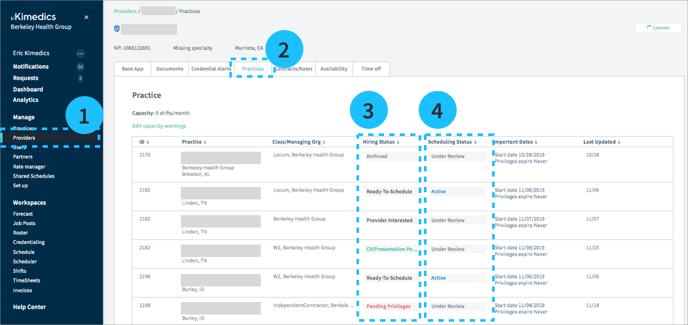
View status across multiple practices

  1. Select Providers from left sidebar and click the row of a provider
  2. Select Practices tab
  3. Hiring status column shows the provider's status 
  4. Scheduling status simplifies the hiring status and either shows Active, if they are ready to schedule, or Under Review, if they are in any other status.
understanding roster 2

Assign tasks to team members

You can assign providers to different members of your team to move them forward in the process or archive them if they are no longer being considered. Set up default assignees for different task types to make this process faster (e.g. Bill is always assigned to approving privileges).