Confirmations defined
Confirmations are the source of truth about scheduled shifts. They contain the dates and times, as well as information about the provider's rates and other compensation.
In Kimedics, there is a unique confirmation for each provider, practice, and month combination.
Confirmations are not visible to providers.
Before you're ready for confirmations
- Get rates approved. Submit rates and contracts for the provider at this practice.
- Assign shifts. Assign shifts to the provider using the schedule
- Confirmations are created automatically, containing rates and scheduled shifts.
Finding confirmations
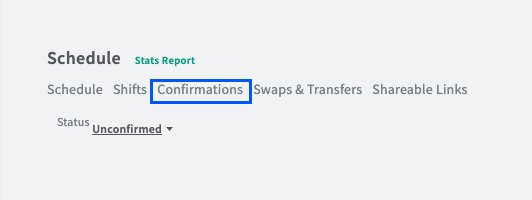
1. Click Schedule on the left sidebar - Click the Confirmations tab. *Note that you land on Unconfirmed Shifts. These are shifts that require attention.
2. Select the filters for the Provider, Practice, and Month that you are looking for.
Notice: The Status column shows how many shifts have been confirmed or the shifts assigned.
Types of approvals in confirmations
- New Shift means a new shift has been assigned to a provider and requires confirmation.
- Rate/Shift Update means shift time or rate has been updated and requires confirmation.
- Cancel Request means a shift have been requested to be canceled and requires confirmation that the other party acknowledges the request.
Assigning a shift
When you add a shift on the schedule, either
- it is automatically Confirmed, or
- it requires approval
Define in your Practice/Setup/Confirmation approvals page which type or providers need approval for their shifts to be automatically confirmed after added to the schedule (see below).
By default, Kimedics requires approval for external providers (i.e. providers managed by an outside organization)
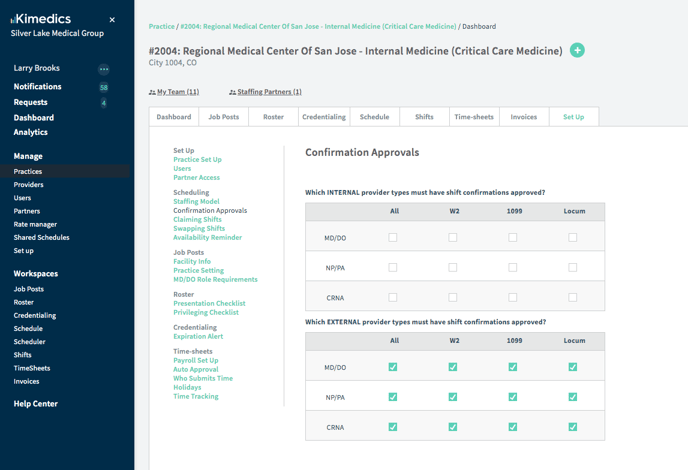
Updating shift or rates
All changes to shifts and rates require approval if the practice set up requires approval for the provider changed. For example, if a locum managed by an external agency requires confirmation approval, if a shift or bonus is added both the client organization and agency must agree to the confirmation.
Approving rate/shift updates on a confirmation
Shifts with deviations or Rate updates that need your approval will show an Approve buttons. If you do not want to approve the Rate/Shift update, you can use the overflow dots to request to cancel.

Cancel a shift
- If the provider is internal (i.e., you manage both the provider and the practice), you can simply remove a shift from the confirmation by selecting Remove
- If the provider is external (i.e., you manage only the provider or only the practice), you'll need to Request to cancel and Submit. The shift will be cancelled if the other party accepts this request, and otherwise remain confirmed.
Adding documents to a confirmation
You might want to attach a document to your confirmation, such as
- legal documents
- support documents
- confirmation letters from agencies
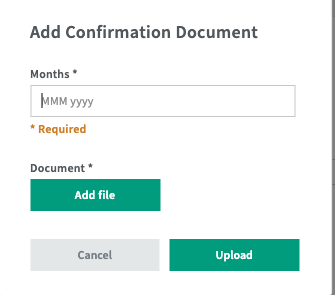
Add a document by scrolling to the Documents section and clicking the Add button.
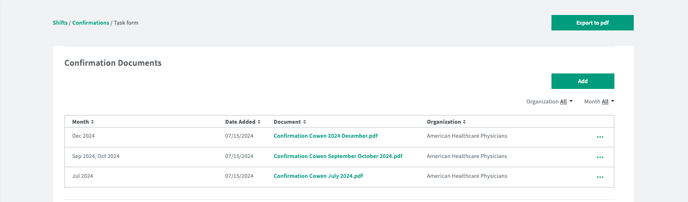
You will then choose the associated Months and select the file (the document name is pulled from the file name). The Organization who uploaded the file will be the only one who will be able to edit or delete a file that was uploaded. To do so, use the overflow dots at the end up the row.