
Kimedics warns you when documents and credentials are within 3 months of expiring.
All credential alerts
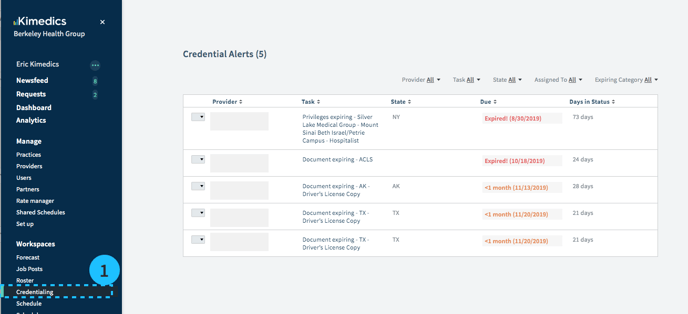
- Select Credentialing section on left sidebar
- This will show you expiring documents and credentials across different providers and practices.
You can export this table to a csv file to view expiring documents and credentials for all providers in one place.
-3.png?width=688&height=248&name=Screenshot%20(212)-3.png)
Easily update these expiring tasks right from the table! .png?width=688&height=153&name=Screenshot%20(394).png)
Using the action button will bring up the correct modal for a task so you can easily update expiring tasks from this space. Click save and move through your list of expiring tasks more efficiently!
.png?width=688&height=345&name=Screenshot%20(395).png)
Credential alerts for a provider
You can see all expiring documents or credentials for a provider on the Credential Alerts section of the provider profile.
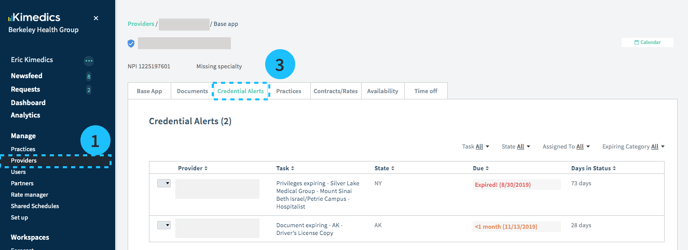
- Select providers section on left sidebar
- Select a provider from the table
- Credential Alerts tab
- This will show you expiring documents and credentials across different practices for this provider.
Credential alerts for a practice
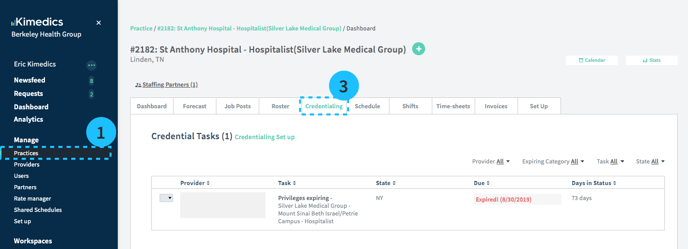
- Select practice section on left sidebar
- Select a practice from the table
- Credentialing tab
- This will show you expiring documents and credentials across different providers for this practice.