
How do I get to time sheets on my mobile app?
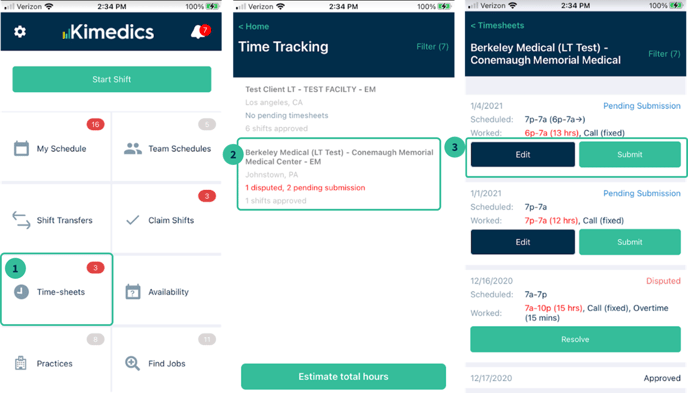
1. Open the Kimedics Mobile App
2. Click on the "Time Sheets" tile
3. Click on the location you are trying to submit time for
4. Edit or submit the shift. You can edit to add any deviations like overtime or submit if there are no changes needed to the shift.
Editing Time Sheets
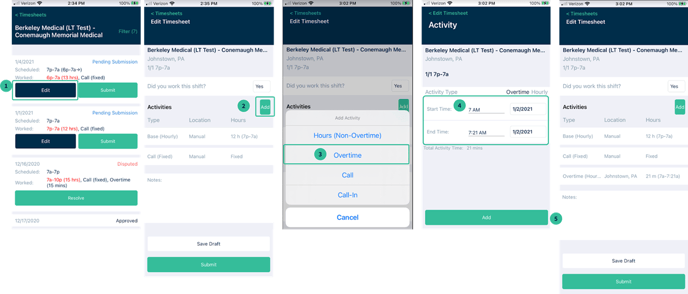
Once you have selected a shift to "edit" you can adjust activities in your list or add additional activities this shift is eligible for. For example, if you would like to add "overtime"
1. Click "edit" button on the shift you would like to edit
2. Click "Add" button
3. Click activity type = overtime (or whatever activity type you want to add)
4. Input start/end time
5. Click "Add" button
When all edits are complete click on submit button to send time sheet for approval, or "save" to save your changes and submit later.
Responding to a disputed time sheet
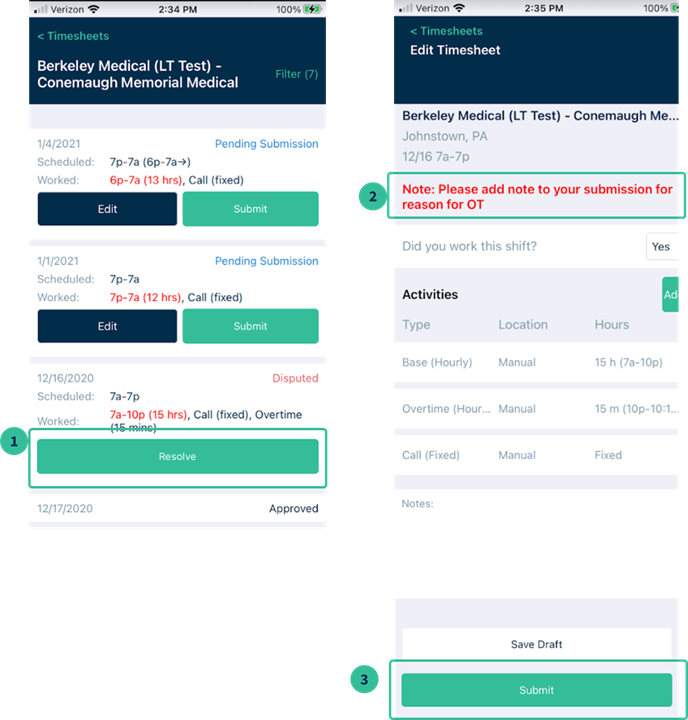
If you receive a notification that you have a disputed time sheet, and you see a shift in the "Disputed" status in your shift list, then you will need to re-submit your time sheet. Your manager will add a note which you will see in red at the top of the time sheet. Edit the time sheet to comply and then click submit when you are ready!
What if I see a shift I did not work in my time sheet list?
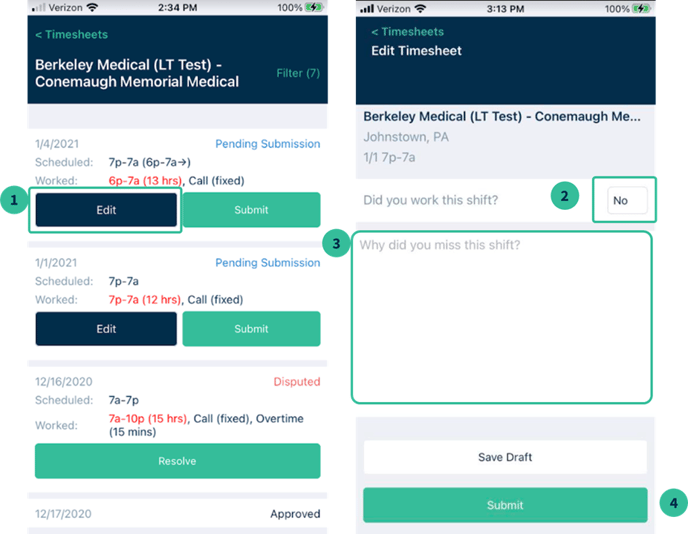
Your time sheet list is generated from the schedule. If you see a shift you did not work, then the schedule needs to be updated and you need to submit as "Did not work". Do the following:
1. Click on the shift and "edit"
2. In response to "Did you work this shift?" select "No"
3. Add a note/reason
4. Click "Submit" when you are finished to send to your manager.
What do the time sheet statuses mean?
We have several different statuses to track where a time sheet is on the way to getting approved. Our statuses are:
- Pending Submission: waiting on the provider who worked the shift or their manager to submit time for approval
- Pending Approval: waiting for the manager to approve the submitted time sheet
- Disputed: The manager disputed the time sheet, when you click on a disputed time sheet you will see a dispute reason in red and you can resubmit your time to get approved again.
- Approved: Your time sheet has been approved and there is nothing left to do!
- Did not work: A provider can submit a time sheet as did not work and this will let the manager know why and update the schedule.
When do you need to submit time?
Your organization should communicate when time sheet submission deadlines are. If you are not sure, reach out to your manager.