
Privileging overview
Privileging determines whether a provider has temp or full privileges to work at a facility. Providers who are waiting for privileging approval from a facility can track upcoming meetings and tasks in the roster status Pending Privileges.
Who submits privileging requirements?
The organization that manages the provider submits privileging requirements. But the client of the organization and the managing organization of the provider can both edit this form.
Who approves privileging requirements?
The organization that manages the practice (the "Client" organization) approves privileging requirements.
Completing the form
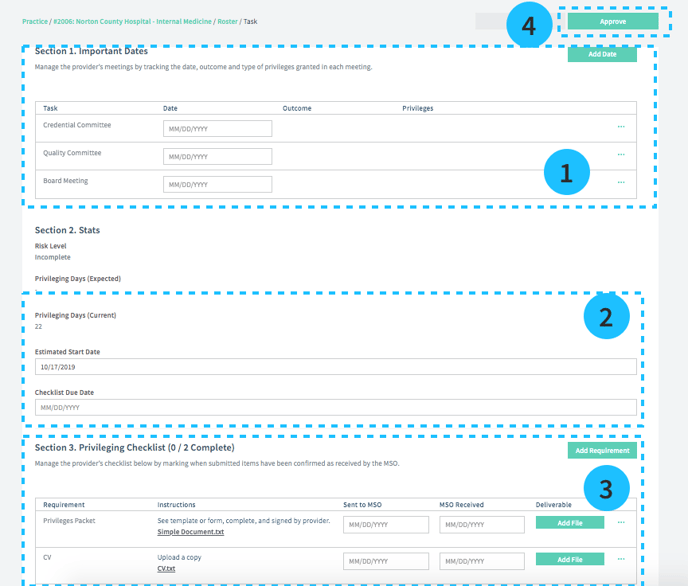
Important Dates (see 1 above)
Select the date of required due dates or meetings and the outcomes (think Credential Committee Meeting or Application Due Date). These meetings are set up in the default privileging requirements in the practice set up tab.
Stats (see 2 above)
Fill out the estimated start date for the provider and the date you want to complete the privileging checklist by.
Privileging Checklist (see 3 above)
This section contains items that must be sent to the Medical Staff Office (MSO or other office) for privileging. Checklist items are set up in the default privileging requirements.
You can track the date each item was sent and received by the Medical Staff Office (MSO).
Approve (see 4 above)
When the provider's privileges have been granted, click on the Approved button to change their status to "ready to schedule" with full or temp privileges. Submit the dates their privileges expire and they will be tracked in the Expiring credentials section.