
Where to access your Smart Form library?
To access your Smart Form library, log into YouSignHere: https://yousignhere.com/.

Sorting & Filtering
Setting Up The Helper Tag
- When wanting to add a filter or sorting rule to a Smart Form table, be sure that the fields you would like included in the table are appropriately mapped from the corresponding section in the Provider Base App.
- For example, if the Smart Form table asks for Employer name, be sure that the Employer name field from the Provider Base App is mapped to that the correct field listed on the Smart Form.
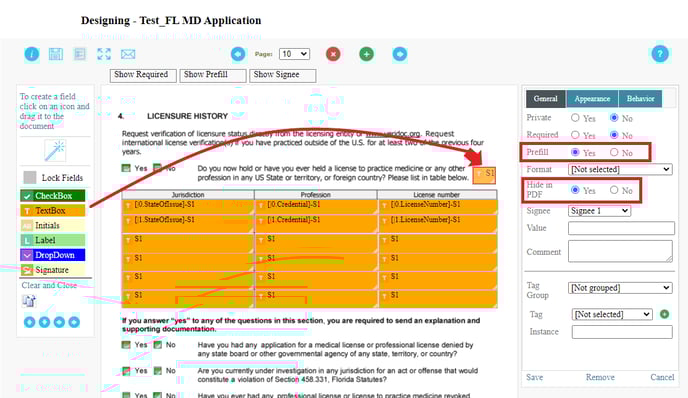
- After the fields have been mapped, select a text box and place above the table you want the rule applied to. This text box should be included in the Prefill and should be hidden in the PDF (Prefill=Yes, Hide in PDF=Yes).
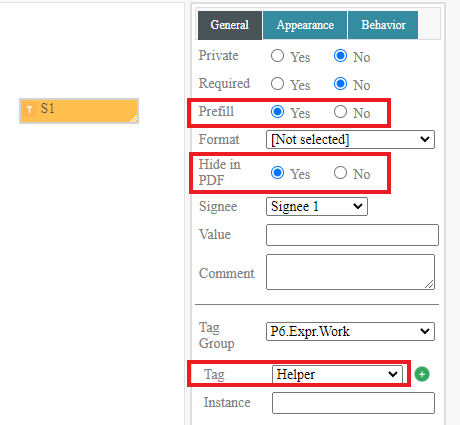
- To specify a filter or sorting rule for a tag group, map the added text box to the Helper tag within the tag group section.
Applying a Sorting or Filtering Rule
- Sorting and filtering rules are specific to each section of the Provider Base App. Below each section header are the details for how to apply the Helper tag rules.
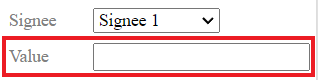
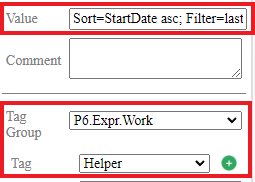
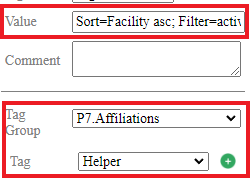
- Both the sorting and the filtering rules are defined in the Value text box under Signee.
- If there is both a sorting rule and a filtering rule for one table, the two rules are separated by a semicolon (;).
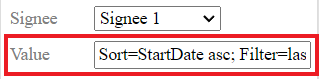
- Each of the fields selected within the rules are case sensitive. Please refer to the rules listed below to determine how the rule should be defined.
Licenses
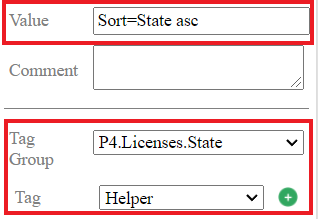
- The sorting rules available for this section apply to State field on the State Licenses table in the Provider Base App.
- State license can be sorted by State (A-Z or Z-A).
- Example: Sort=State asc
- Example: Sort=State desc
- State license can be sorted by State (A-Z or Z-A).
Specialty - Board Certified Specialties
- The sorting rules available for this section apply to the Certificate Date field on the Board Certified Specialties table in the Provider Base App.
- Specialty Certificate Dates can be sorted from oldest to newest (asc) or newest to oldest (desc).
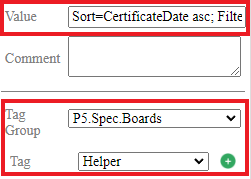
- Example: Sort=CertificateDate asc
- Example: Sort=CertificateDate desc
- Specialty Certificate Dates can be sorted from oldest to newest (asc) or newest to oldest (desc).
- The filtering rules available for this section apply to the Status field on the Board Certified Specialties table in the Provider Base App.
- Specialty can be filtered by Status (Board certified, Board eligible).
- Example: Filter=Board certified
- Specialty can be filtered by Status (Board certified, Board eligible).
- Both sorting and filtering rules can be applied to one helper tag for a single section. Both of the rules would need to be defined in the Value section of the Helper tag.
-
- Example: Sort=CertificateDate asc; Filter=Board certified
-
Experience - Education
- The sorting rules available for this section apply to the Start Date field on the Education table in the Provider Base App.
- Education start date can be sorted from oldest to newest (asc) or newest to oldest (desc).
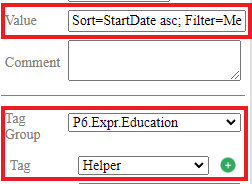
- Example: Sort=StartDate asc
- Example: Sort=StartDate desc
- Education start date can be sorted from oldest to newest (asc) or newest to oldest (desc).
- The filtering rules available for this section apply to the Education Type field on the Education table in the Provider Base App.
- Education can be filtered by Education Type (Undergraduate, MBA, Medical school, other graduate degree).
- Example: Filter=Medical school, other graduate degree
- Education can be filtered by Education Type (Undergraduate, MBA, Medical school, other graduate degree).
- Both sorting and filtering rules can be applied to one helper tag for a single section. Both of the rules would need to be defined in the Value section of the Helper tag.
-
- Example: Sort=StartDate asc; Filter=Medical school
-
Experience - Training
- The sorting rules available for this section apply to the Start Date field on the Training table in the Provider Base App.
- Training start date can be sorted from oldest to newest (asc) or newest to oldest (desc).
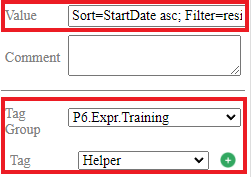
- Example: Sort=StartDate asc
- Example: Sort=StartDate desc
- Training start date can be sorted from oldest to newest (asc) or newest to oldest (desc).
- The filtering rules available for this section apply to the Training Type field on the Training table in the Provider Base App.
- Training can be filtered by Training Type (Internship, residency, fellowship, research fellowship, fifth pathway, advanced practitioner, AP training).
- Example: Filter=Internship, residency, fellowship
- Training can be filtered by Training Type (Internship, residency, fellowship, research fellowship, fifth pathway, advanced practitioner, AP training).
- Both sorting and filtering rules can be applied to one helper tag for a single section. Both of the rules would need to be defined in the Value section of the Helper tag.
-
- Example: Sort=StartDate asc; Filter=residency, fellowship
-
Experience - Work Experience
- The sorting rules available for this section apply to the Start Date field on the Work Experience table in the Provider Base App.
- Work Experience start date can be sorted from oldest to newest (asc) or newest to oldest (desc).
- Example: Sort=StartDate asc
- Example: Sort=StartDate desc
- Work Experience start date can be sorted from oldest to newest (asc) or newest to oldest (desc).
- The filtering rules available for this section apply to the End Date field on the Work Experience table in the Provider Base App.
- Work Experience can be filtered by the End Date using these options:
- last 4 years - this filters work experience to include any work done in the last 4 years.
- last 5 years- this filters work experience to include any work done in the last 5 years.
- last 10 years - this filters work experience to include any work done in the last 10 years.
- Example: Filter=last 5 years
- Work Experience can be filtered by the End Date using these options:
- Both sorting and filtering rules can be applied to one helper tag for a single section. Both of the rules would need to be defined in the Value section of the Helper tag.
-
- Example: Sort=StartDate asc; Filter=last 5 years
-
Affiliations
- The sorting rules available for this section apply to the Start Date field and the Facility field on the Affiliations table in the Provider Base App.
- Affiliations start date can be sorted from oldest to newest (asc) or newest to oldest (desc).
- Example: Sort=StartDate asc
- Example: Sort=StartDate desc
- Affiliations can be sorted by the Facility (A-Z or Z-A)
- Example: Sort=Facility asc
- Example: Sort=Facility desc
- Affiliations start date can be sorted from oldest to newest (asc) or newest to oldest (desc).
- The filtering rules available for this section apply to the Privileges End Date field on the Affiliations table in the Provider Base App.
- Affiliations can be filtered by the Privileges End Date using these options:
- active - this filters affiliations to include those where the privileges end date is greater than today and the start date is less than or equal to today.
- expired - this filters affiliations to include those where the privileges end date is less than today.
- no date - this filters affiliations to include those where the privileges end date has not been entered into the Provider Base App.
- Example: Filter=active, no date
- Affiliations can be filtered by the Privileges End Date using these options:
- Both sorting and filtering rules can be applied to one helper tag for a single section. Both of the rules would need to be defined in the Value section of the Helper tag.
-
- Example: Sort=Facility asc; Filter=active, no date
-
Smart Forms Frequently Asked Questions
What if I need a sorting or filtering rule that does not exist?
- Email support@kimedics.com and define the following:
- Is a sorting rule or a filtering rule?
- The section of the Provider Base App that this rule would apply to (please include any tables within the sections that you are wanting to map into a Smart Form).
- The Provider Base App field you would like the rule applied to
- If it is a sorting rule, please define the direction of the sort (oldest to newest, A-z, etc.)
- If it is a filtering rule, please define the options you would like to have filter the data to
What do I do if my prefill fields are not populating?
Check that these items are true for the document you are mapping:
- There should be a signature field added somewhere in the document that indicates who the signee should be (likely "Caregiver").
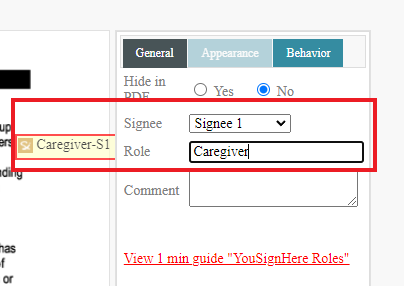
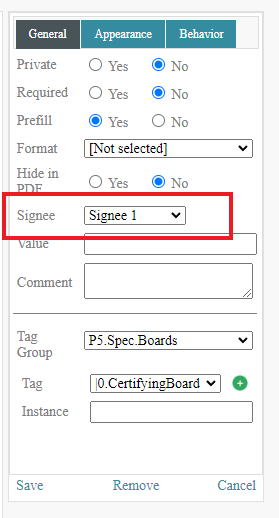
- Each of the mapped tags should have the Signee field mapped to the role that will be filling out the form. Otherwise, the prefill will not work without this field populated.
How do I require a field to be filled out?
- Select the text box of the field you want to require.
- In right-hand window, select "Yes" for Required section.
- Click Save
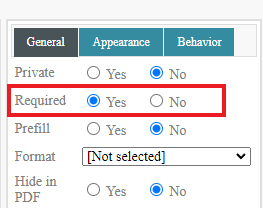
- When sent, the text box will appear Red indicating the field is required.

How do I align the text boxes?
- Click the Wand (Group Operations button in left-hand menu.
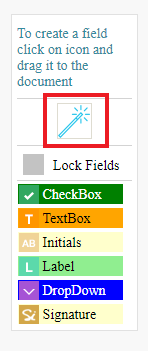
- Click the text box you are wanting to align.
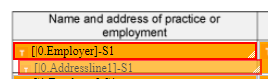
- Hold down the Ctrl key and select the second text box that you are wanting to align the first one to. The text boxes selected will have a red border around them.
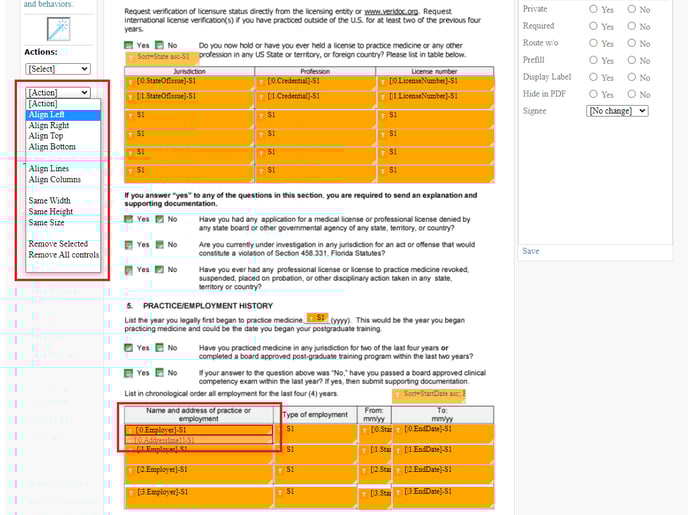
- Under the Group Options menu, select the Align option from the Action dropdown menu.
How do I change the font of the data entered into the text boxes?
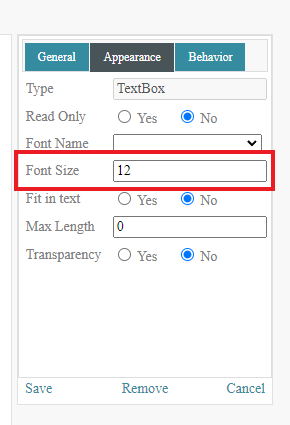
- Select the text box you want to change.
- In the right-hand menu, select the Appearance tab.
- Enter in the font size you wish to see.
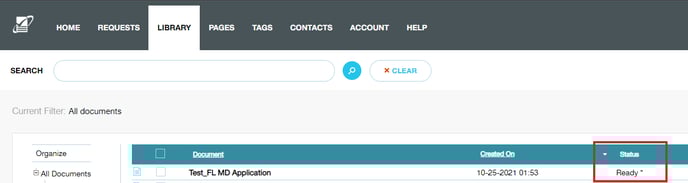
What does the asterisks next to a document status mean?
- When an asterisks is next to the document status, this indicates that there is a document request in progress and the document cannot be edited.
- If you click into a document with an asterisks, the document will open in a Read-Only format.
- To cancel a request, go to the Requests tab. If a document is in progress click Waiting.

- For any request you would like to cancel, click the trashcan icon. This will remove the asterisks next to the document status and the document can now be edited.
