
Updating availability
- From the home screen, tap Availability
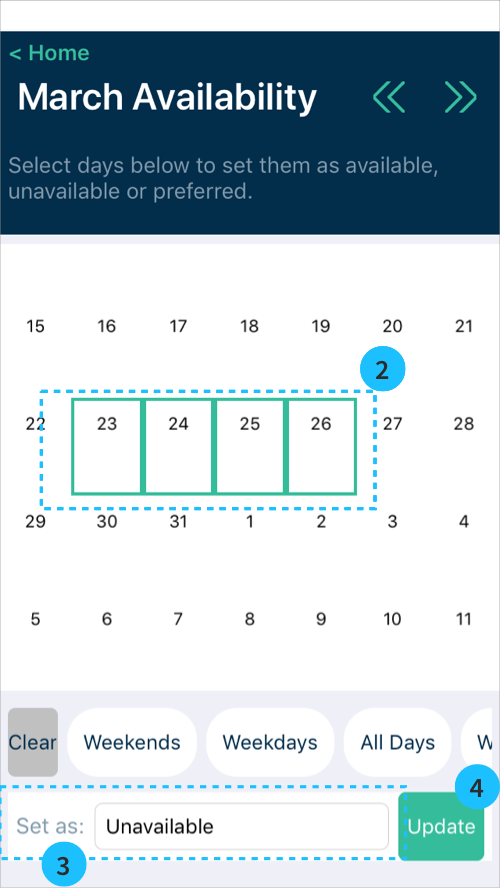
- Select days by tapping on them or using the selectors below the calendar: Weekends, Weekdays, All days. Selected days are outlined in green. You might need to scroll down to see the buttons below the calendar.
- Update the status of selected days at the bottom of the screen, to "Set as"
- Available: you could work this day (no marking)
- Unavailable: you cannot work this day (greyed out)
- Preferred: you prefer to work this day (yellow star)
- Tap Update to apply changes