What are open shifts?
Open shifts are shifts at your practice that are currently unstaffed.
You can use your staffing model to define how many open shifts of each type you have in a month.
Why share open shifts with providers?
You can send open shifts to providers who are using Kimedics.
Providers can "claim open shifts" to let you know they are willing to work them. You will see a green checkmark on a day if a provider has claimed a shift that day.
How to share open shifts
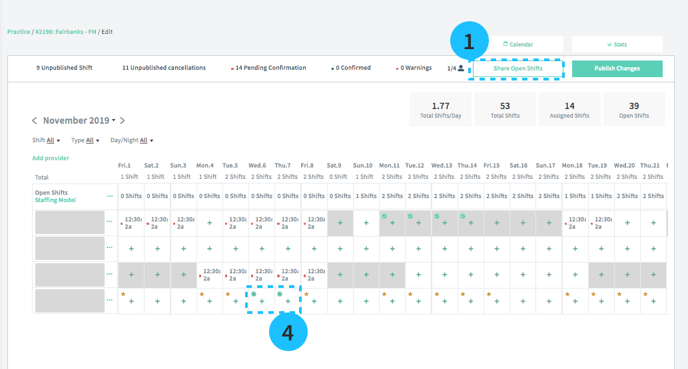
- From the schedule, select Share Open Shifts
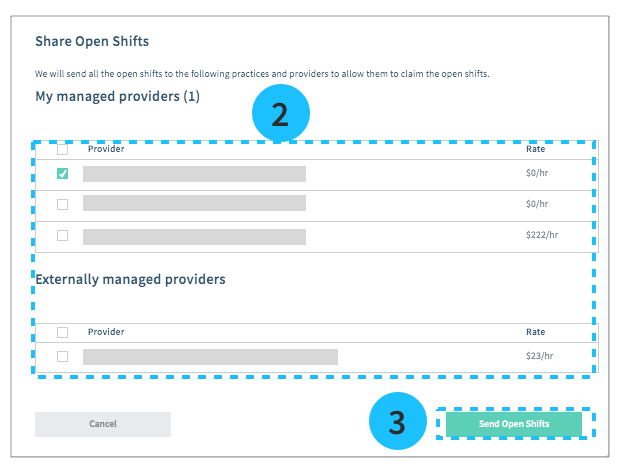
- Select the provider(s) to share shifts with.
- Send Open Shifts
- Days with claimed shifts appear with green checkmarks
What happens when providers claim shifts?
There are two options based on the practice set up (see below for steps to set that up):
- Shifts are added to the schedule without further action required
- Shifts appear claimed on the scheduler (green checkmark) for managers to then assign
Claimed shifts that require approval can have a note attached. These notes will need to be added from the shift drawer from the calendar view or shift-open beta view.
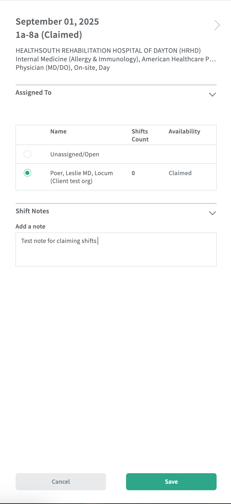
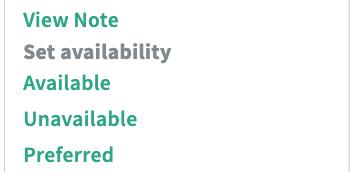
If a note exists, the drop down option in the scheduler will show that a note is attached. Managers can review that note in the shifts-claimed beta table (clicking 'view note' will direct them here). Each note will be stored in the change log and will be included in the 'when open shifts are claimed' email notification.

How to set up your preferences for claiming shifts
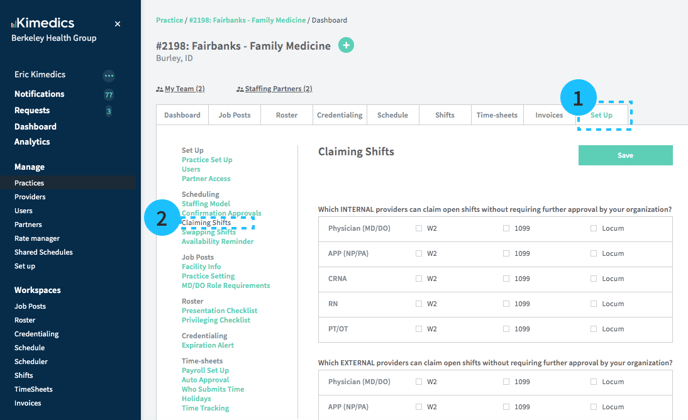
- Open the Set Up tab of a practice
- Select Scheduling/Claiming shifts
- Select the credentials that require approval after being claimed
- Save