
We have a variety of icons to help you build your schedule. We look at scheduling in 2 parts:
- Information to help you assign shifts: ability to see availability and claimed shifts
- Status and approval of assigned shifts: ability to see which shifts are fully confirmed vs. unconfirmed
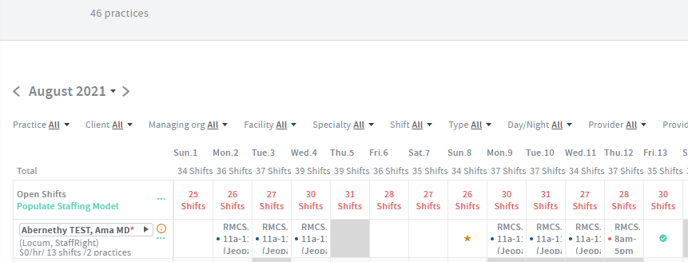
Scheduler/Provider View example:
Legend
Information to help you assign shifts:
- Availability
 White cell = Available (no shifts assigned) (August 1,6-7 in example)
 Grey cell = Provider or Provider managing org has marked this date as unavailable (August 5 in example)
 Star in cell = Preferred Date (provider or provider managing org has marked this as a date the provider would prefer to work) (August 8 in example)
- Claimed Shifts
 Green Check mark = Claimed date (provider or provider managing org have claimed an open shift that they would like to work) (August 13 in example)
Insight: book an assigned shift off the stars (preferred date by provider) or green check marks (claimed shifts) and avoid grey cells where provider has noted unavailability!
Track Status and Approval of Assigned Shifts:
 Pink dot next to shift name = Assigned Shifts that are Unconfirmed: these could be new shifts pending approval, shifts that have edits to rates/times that are pending approval, or cancel requests. User can click on the "..." next to the provider name to go to the provider confirmation to approve. (August 12 in example)
 Navy dot next to shift name = Assigned shift that is fully confirmed and approved. (August 2-4,9-11 in example)