
On the Roster Page, users now have the ability to set a budget. This budget will be tracked against approved timesheets. This allows the managing org to keep tabs on the how much a particular provider has cost them and track this provider utilization against a budgeted amount.
This will help managing orgs stay on track for spend and provide clear analytics for cost.
Why Set a budget?
By including a budget/ PO amount on a roster, the user can easily see how much a provider has cost them. The budget figure is reduced by approved timesheets. This creates a clear metric to track against when trying to understand spend by particular providers. These metrics can be clearly seen in budgeting table and in the users analytics reports.
How to set a provider budget?
You can easily set a budget by navigating to a particular provider's roster. Select the Roster navigation item in the left hand navigation. This will take you to the rosters page, select a provider roster to navigate to their detail page.
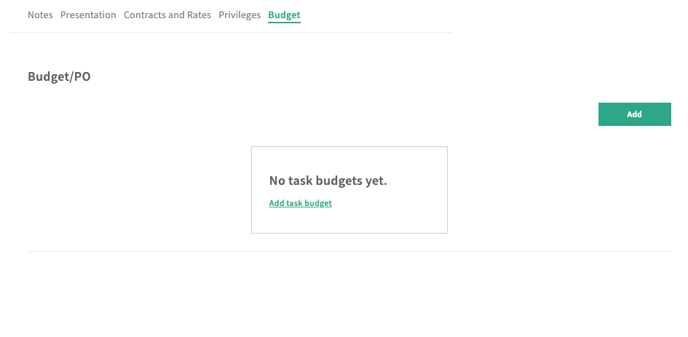
On the roster detail page, you will now see the Budget item in Roster navigation. Clicking on that item will show the available budget for this roster item.
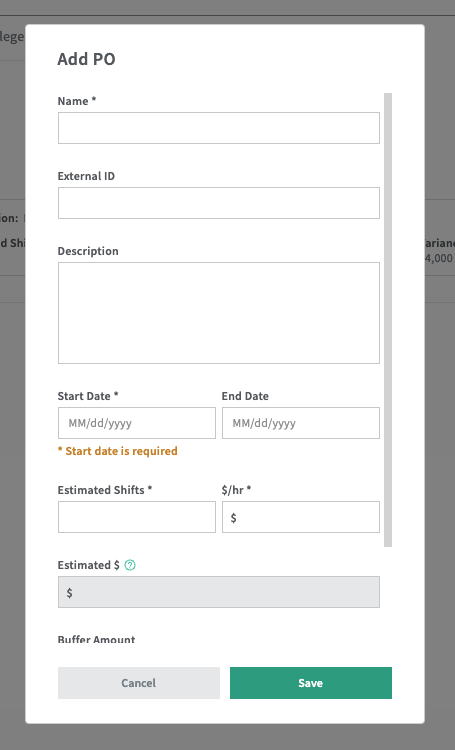
A modal will open when a user clicks the "Add" button at the top of the table. In this modal is where a user can set up a Budget. Once the Modal is opened the user will be prompted to input the following information:
- Budget Name - Name this budget something meaningful, it will show in analytics
- External Id - this unique number can be used to track budget outside of Kimedics
- Description - Users can add a description that help qualify spend
- Start Date (required) - This date provides the system when to start applying shifts towards this budget
- End Date - This date will allow the system to not track budget on shifts occurring after this date
- Estimated Shifts (required) - This provides a starting number for the budget, the actual budget amount will be calculated from the shifts from the timesheets
- Dollars per hour (required)
- Estimated Spend - calculated based on an average 12 hour shift
- Buffer Amount - any added budget to cover unseen expenses or unexpected shifts
- Budget Amount - Calculated by the estimated spend and the buffer amount
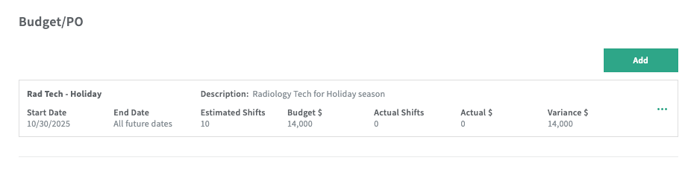
Once the user saves the Budget, they will see the following fields on the the Budget table:
- Name
- Description
- Start date
- End date
- Estimated shifts
- Budget amount
- Actual shifts
- Actual amount
- Variance amount
In this view the user can easily see what shifts have been worked, the amount budgeted and the variance amount. In keeping an eye on the variance amount, the user can see if they need to increase the budget amount or add additional buffer.
How are these numbers calculated?
The system will look account for shifts between the start and end date. If no end date is provided, the system will track agains budget amount only.
Estimated dollar amount is generated based on the estimated number of shifts multiplied by the dollars per hour figure. The budgeting system shift assumes an average of 12 hours per shift. So in the example, if a user enters 10 estimated shifts at $100 per hour, then the resulting estimated spend will be $12,000.
The actual amount is generated by looking at the shifts that were worked along with any additional expenses from the timesheets. This gives the full picture of what the provider has been paid.
External providers will use billable rates towards the actual $ amount. Internal providers will use comp rates towards the actual $ amount.