
Generating invoices from your time sheet
In order to generate an invoice, you must be in the "approved" status. Time sheets MUST be in the "approved" status in order for an invoice to be generated.
Where can I take this action from?
1. Period Summary
2. Status Summary
3. Time Sheet Summary
Learn more about our views here: time sheets/how you can use our time sheet views to navigate through pay period approvals.
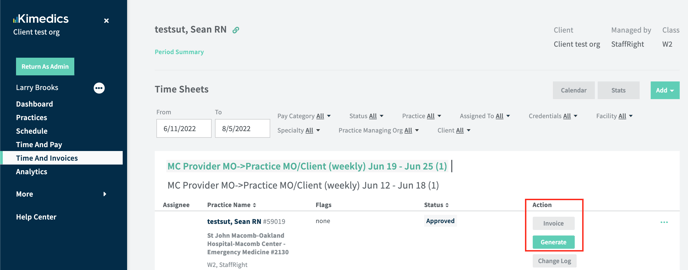
There are 2 methods of adding an invoice -
1. via generate (use the "Generate" button) - use the Kimedics generated template to ensure all data ties back to the invoice - as soon as you generate the time sheet status, it moves to "approved/locked" and the invoice will show in your invoice table.
2. via upload (use the "Invoice" button) - upload your own pdf (we still generate an associated Kimedics invoice for reference). This is only possible when not using an MSP use case.
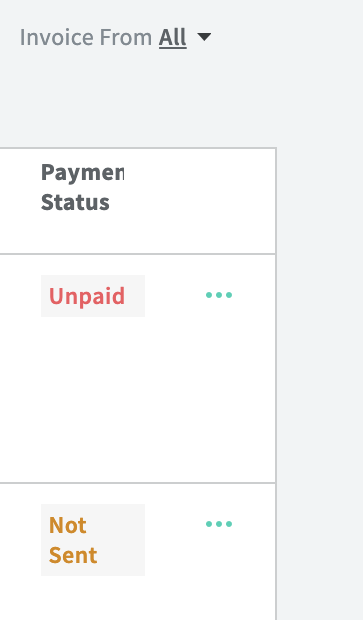
Invoice Statuses
You can see the status of your invoice in the table - unpaid, not sent, sent, etc.
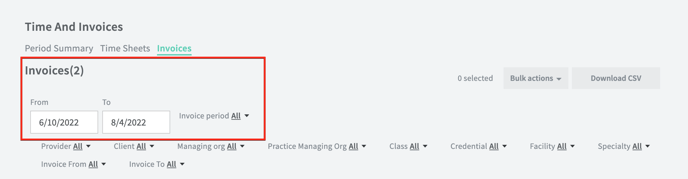
Filtering your invoices table
You have the ability to filter your invoice tables From = (start date) and To = (end date).
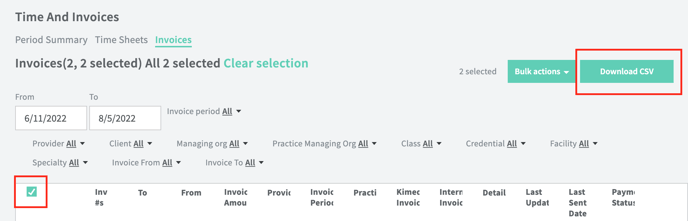
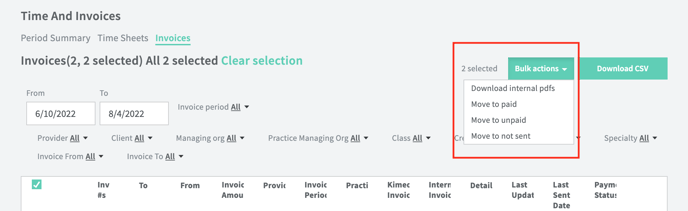
Bulk actions for downloading CSV
You have to ability to download CSVs in bulk. See the example below:
Bulk actions for updating statuses
Bulk actions such as move to paid, move to unpaid, and move to not sent are available.
Setting up your default invoice assignees
When setting up your default invoice assignees, you will need to click the Set Up tab > go to the Practice Defaults tab > Assignee/Workflow set up. From here, you can define your assignees by status.
Utilizing your assignees
This will show in "My tasks" on your dashboard