
Home will always be the default page users land on when first navigating to Kimedics.
Every user role will come with default widgets turned 'on', but users have the ability to customize their home screens to fit their preferences. Widgets are perfect for users to take quick actions.
Customize Home:
To MOVE widgets around on the screen, click the icon that appears in the righthand corner of a widget and drag it to anywhere on the screen.
To DELETE a widget, click the trash can icon that appears in the righthand corner.
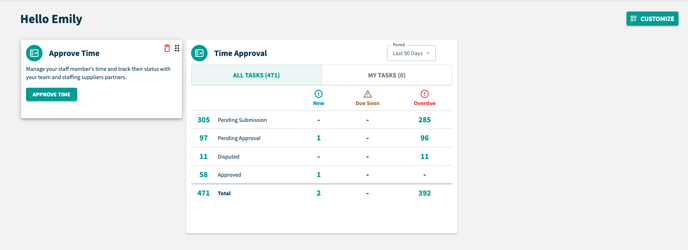 To CUSTOMIZE your Home Screen to see the widgets you want to see, click the 'Customize' button.
A modal will appear with widget options a user has access to. To turn a widget 'on', the toggle needs to be to the right (it will be highlighted to indicate it is on). To turn a widget 'off', the toggle needs to be over to the left. If a user deletes a widget, the toggle here will be turned 'off'. Users can turn on widgets individually or by workspace. If the toggle for a workspace is turned 'on', all the widgets underneath will also be 'on'. If the toggle for a workspace is turned 'off', all the widgets underneath it will also be turned 'off'.
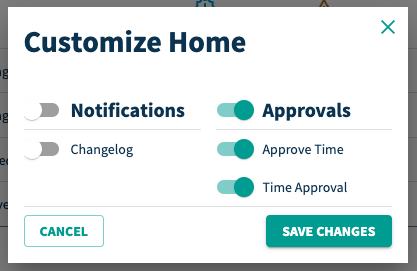
TYPES OF WIDGETS:
Approve Time Widget: Clicking the 'Approve Time' button on this widget will direct users to a filtered view of the approvals table showing any current and past incomplete approvals in a pending approval status.
Time Approval Widget: This widget shows information from the last 90 days. Clicking any number in this widget will direct users to a filtered view of approvals based on the number they selected. If a user selected a number that was under overdue for disputed approvals, they will be directed to a view of the approvals table that where it is filtered to show overdue disputed approvals from the last 90 days.
Changelog Widget: This widget shows users the last 25 changes taken in Kimedics. Clicking into a specific line item will direct the user to the specific approval/user profile/staff/etc where an action was taken. They can navigate to see the Full Changelog by clicking the button at the bottom.