You might want to update your job post if
- You have updated information about the role
- You are no longer considering new providers
- You want to edit sharing settings
- Notifications
Update information about the role
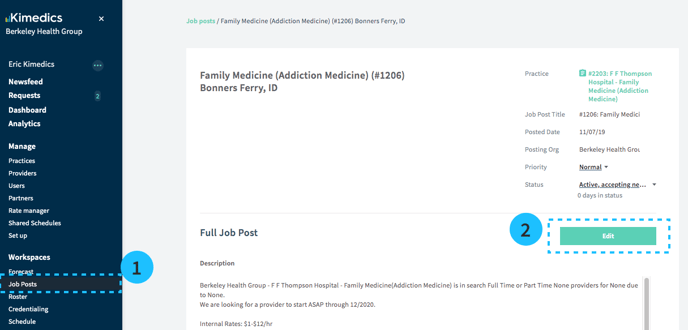
- To view your job post, go to the Job Posts section on the sidebar and select your job post from the list.
- To edit a section of job post, select the Edit button to the right of the section title
Update the status
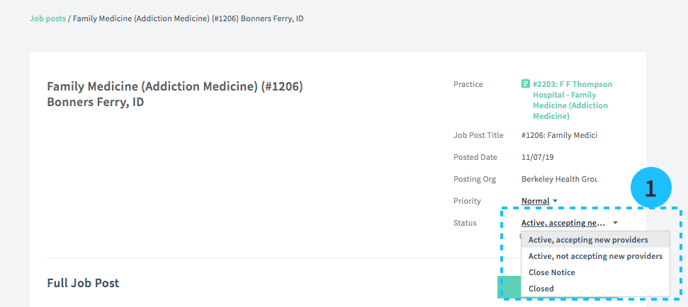
- To let partners and providers know you are no longer considering new providers, select the Status drop down and update it to Closed*.
Edit sharing info
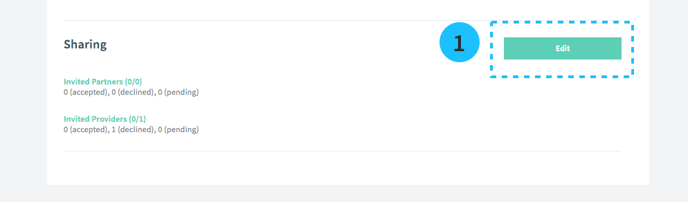
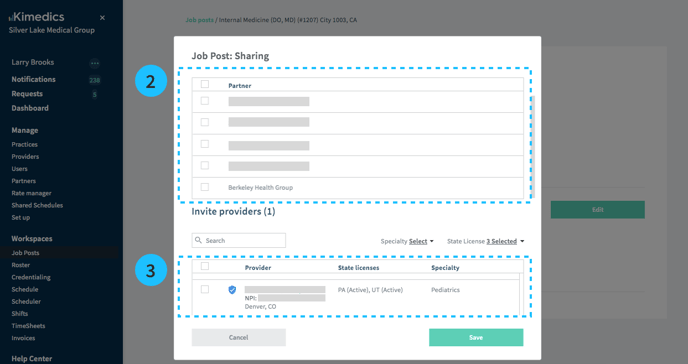
- Go to the Sharing section and click Edit
- Select/deselect partners partners
- Select/deselect providers. Note: Some providers are not available -
- providers already submitted
- providers who haven't accepted your request to connect
- providers who don't have Kimedics accounts.
Notifications
Updating the practice description or status will trigger an alert for people who have this notification enabled.
Change log for Jobs

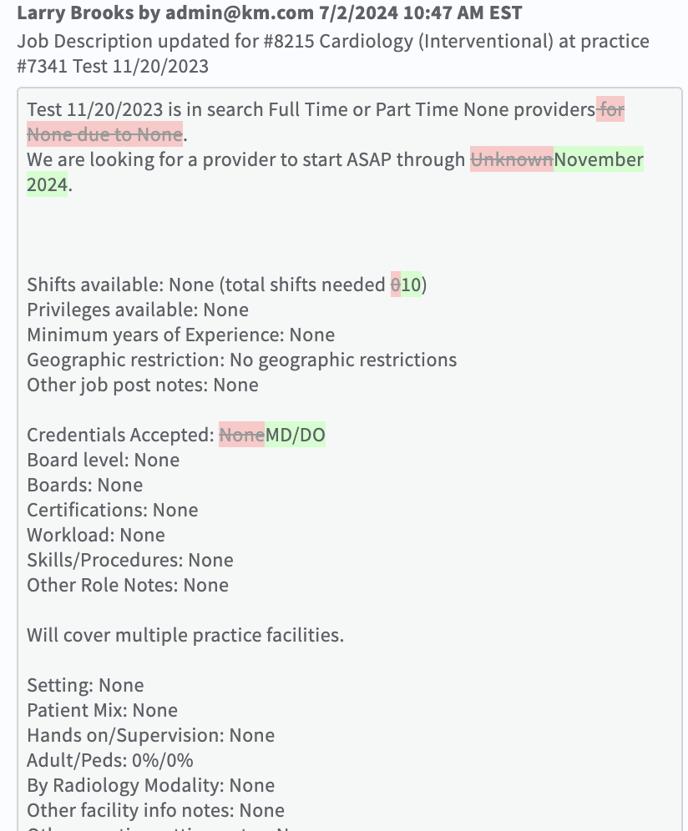
The change log in jobs will show you what changes have been made and by who for a job post.
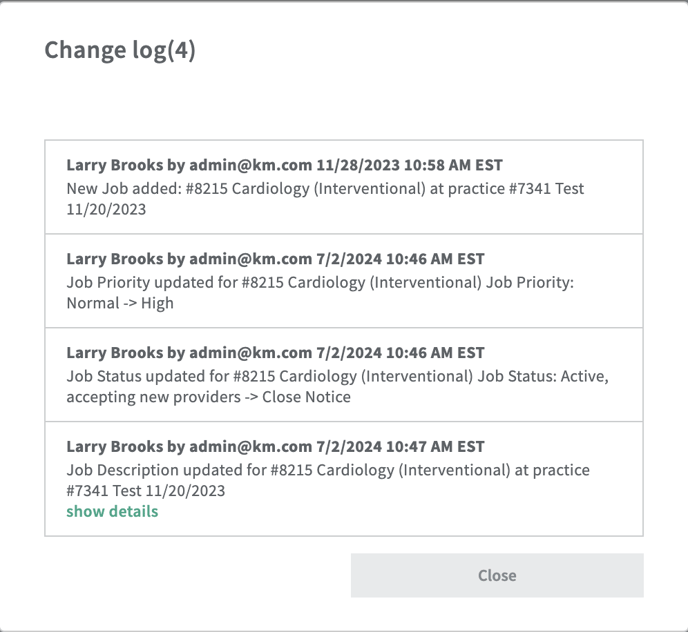
Clicking 'show details' will expand the sections to show you the changes - everything in red is what had been removed - everything in green is what is new/updated.