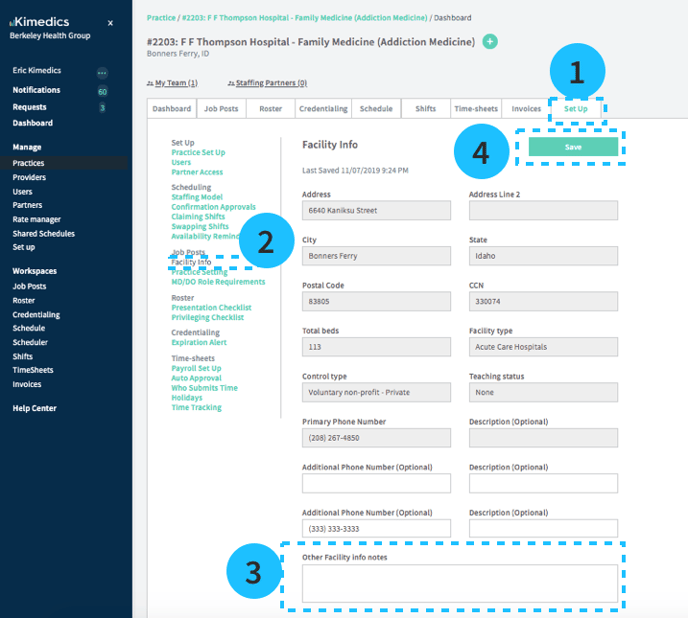
Facility info
This information appears on all job posts for this practice. It helps partners and providers understand your practice.
- Open the Practices table, select your practice, and open the Set Up tab
- Open the section called Facility Info
- Add any relevant information about the facility (e.g. Facility is a Level I Trauma Center).
- Save.
Practice Setting
In Org Set Up, go to Practice Defaults, then go to Users.
See how you have the ability to choose if all users gets practice access or if only select users get practice access.
.png?width=688&height=251&name=Screenshot%20(59).png)
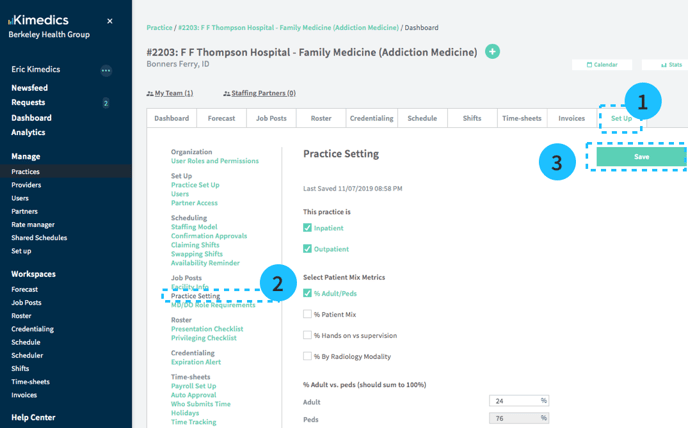
This section contains patient mix and setting.
This information appears on all job posts for this practice. It helps partners and providers understand your practice.
- Open the Practices table, select your practice, and open the Set Up tab
- Open the section called Practice Setting
- Provide information about the practice setting and Save.
MD/DO Role Requirements
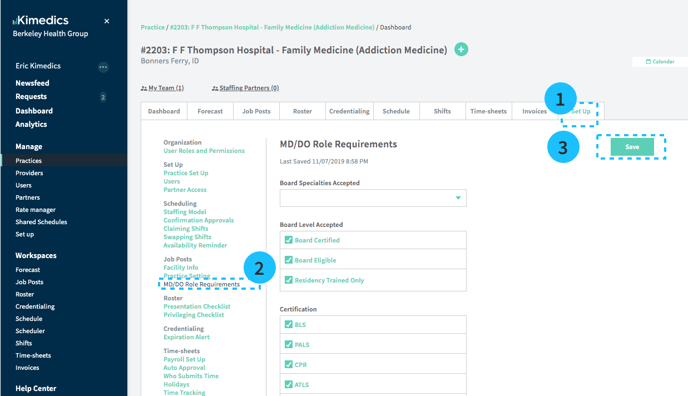
Define what you are looking for in a provider, including boards, board level, certifications, workload, and required skills and procedures. These criteria are used to show you how well different providers match your job.
This information appears on all job posts for this practice. It helps partners and providers understand your practice.
- Open the Practices table, select your practice, and open the Set Up tab
- Open the section called MD/DO Role Requirements
- Provide information about requirements for this practice and Save.