
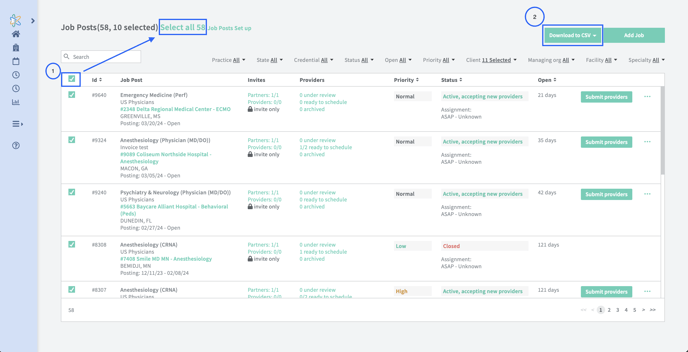
Step 1: Use the check boxes to select which jobs you want to be in your download. You can select ALL jobs by clicking "Select all." If you are looking for specific information, you can filter your Job Posts table before making any selections.
Step 2: Once jobs are selected, it will enable the "Download to CSV" button. Clicking this will allow you to choose if you want to only download properties in your view or ALL properties.
The download typically consists of:
- Job ID & Job Title
- Client org
- Practice ID, Practice Name, Facility, City, & State
- Specialty
- Credential
- Status and Priority
- Job Posted Date, (if applicable) Job Closed Date, & Days Open
- Number of open positions
- and much more.