
What access can your organization customize?
1. Workspace access - this is defined by a user's "Role" and defines the workspaces they can access (jobs, roster, schedule, scheduler) as well as admin actions they can take.
2. Practice access - From practice set up users can manage who can access the practice. A practice must be set up as "select users can access each practice" to manage this.
What are roles?
Users are the people in your organization. Each user is assigned a role when the administrator adds them to the organization.
Roles are categories you can assign to your users that determine what permissions they have and workspaces they view.
Define your roles
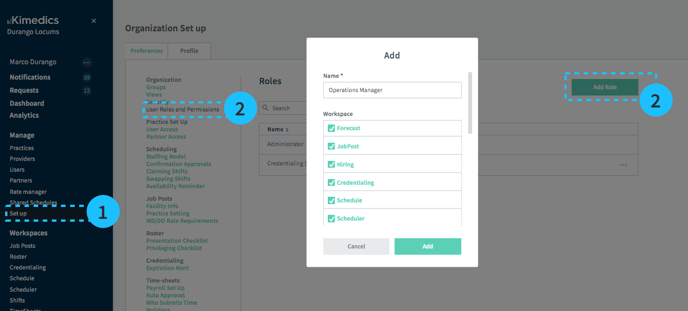
- Go to Setup
- User Roles and Permissions
- Add Role
- Name your role and select which workspaces users with this role can see, as well as other permissions, like
- Can they see provider compensation? , or
- Can they accept other team members into the organization?
- To edit or delete a role, click the "..." on the right side of the row and Edit
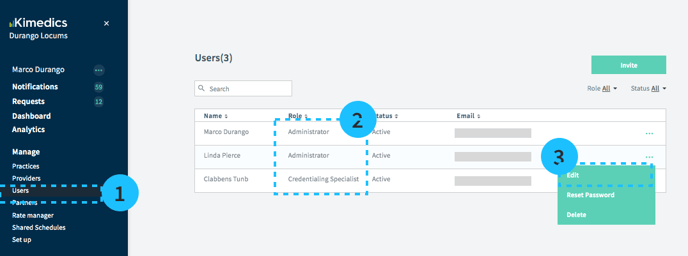
View and assign roles
- Go to Users
- You can view what is assigned in the Role column
- To edit a user's role, select the "..." and Edit