Practice Groups
You can group practices together that contain information and processes you want to manage together. For example, you may want to manage a specialty across multiple locations in a single view. Inside the group, the user creates a mini-environment where Rosters, jobs, and schedules are limited to that group view.
To get started, Open the Practices workspace. In the top left-hand corner select the Groups link.
Creating Groups
-1.png?width=688&height=259&name=Screenshot%20(67)-1.png)
Practices must already exist before they can be added to a group.
- Inside the Practices workspace, click on Groups to open the group workspace.
- Add ▽ > Add a group to open the Create Practice Group window.
- Inside the Create Practice Group, start adding practices using the Select Practices dropdown. You can search practices by name by typing in the practice name to narrow your search. The selected practices become saved in the practice table in the middle of the window.
- Once all of the practices are added you will need to name the group
- Select who has access to the group; is it a personal group or viewable by your whole organization?
- Click Save when complete
- Open the group
Practice Access through Practice Groups
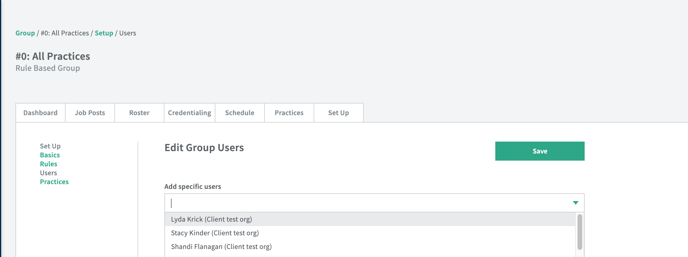
By default, every organization will have an 'All Practices' practice group. As practices get created, they will automatically get added to this practice group. All Administrators will get access to this Practice Group by default. Non-Administrator roles will have the ability to be added to this Practice Group so that as Practices are automatically added to the group, these users will automatically gain access to those new Practices.
As you create other Practice Groups for regions, specialties, clients, etc, you can give users access to those groups so that as you make changes to the group, it will update the Practice access for users associated to the group automatically.