
Claim shifts section
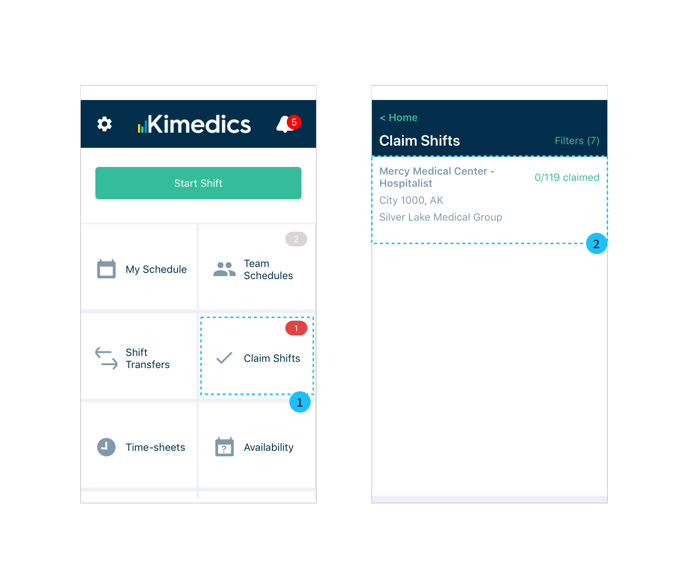
- To find your claim shifts section, select Claim Shifts from the home screen. You will see a red badge if there are new shifts to claim.
- Claim Shifts displays a list of all the practices that have shared open shifts with you. Click a practice to view and claim open shifts there.
Claim shifts calendar
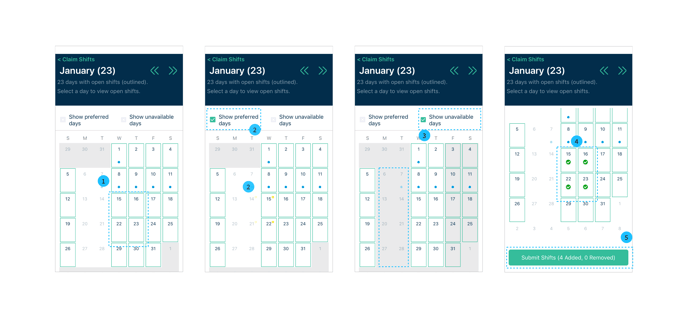
- The calendar shows green outlines around days with open shifts. Click a day to select an open shift. Days with open shifts claimed have green checkmarks (see 4)
- Select Show preferred days to see yellow stars on the days you have marked as preferred on your availability calendar
- Show unavailable days to grey out the days you have marked as unavailable on your availability calendar.
- Claimed days display green checkmarks
- Submit to send your response
- Organizations will see your claimed shifts on their calendar.