Need to change the shift times for multiple shifts?
Need to add a note for multiple shifts?
Need to assign multiple open shifts?
Here is how!
In the Schedule - select the shifts you want assign, add a note to, or change the shift times for. When the left rail pops out, you can take those actions there.
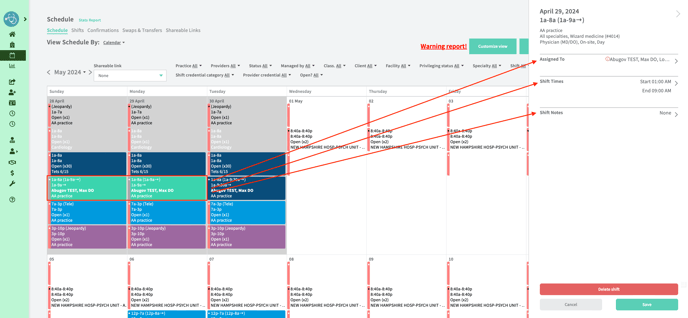
Please note that there are certain parameters to taking these actions:
1. You cannot edit shift times for OPEN shifts. The shift must be assigned first in order for you to make changes to the shift time. You can ASSIGN open shifts in bulk to one provider at a time.
2. To edit shifts in bulk, they must be of the same staffing model + provider. They also must be of the same start-end time.
Example – You have five 7a-5p Day Shift staffing models selected BUT one of those have been edited before and the shift time is now 7a-5:30p. The option to edit shift times will NOT appear until you deselect the deviated shift from the selected options. However, if you select shifts of the same staffing model where they have been deviated before but the start and end time match for all, you can edit those shift times in bulk.
3. You can add notes for shifts of the same staffing model (does not have to be for the same provider in this case). All of those shifts will need to have the same note that already exists OR they must all be blank. This is so that existing notes don’t get overwritten.
In the Scheduler, you can only edit shift lengths but the same parameters mentioned above are applied here.
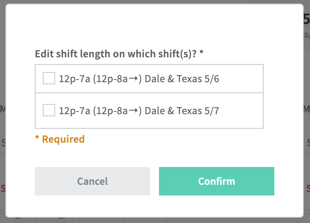
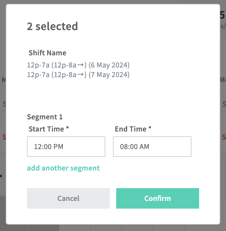
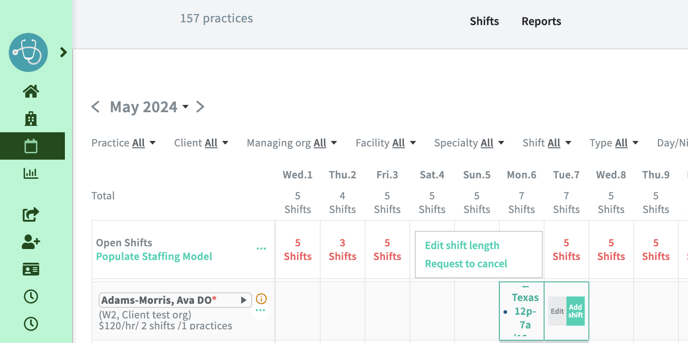
To edit shifts in bulk in the Scheduler, select the shifts you are wanting to edit shift times for > click edit shifts length.
Confirm the shifts you are wanting to edit and make the changes in the modal that appears. Once you click confirm, the changes with be applied to the shifts selected.