
The Approvals Table:
All approvals that require some sort of action will live here. This space is the equivalent to Time & Pay/Time & Invoice in 1.0.
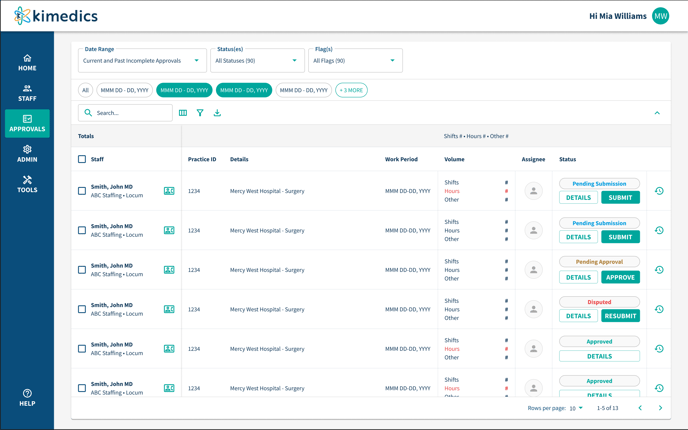
The default columns for the approvals table will show Staff Name (last name, first name, labor title - provider managing organization - classification - staff contact card), Practice ID, Practice Name, Work Period, Volume (# of shifts, # of hours, and # of others), Assignee, and Status. You can use the manage columns icon to update the table to add/remove columns to see the information that means the most to you.
 The totals bar lives at the top of the table to show the total amount of shifts, hours, and others for the approvals that fall under the date range/filters selected.

Users can take action on an approval directly from the table by using the action buttons in the status column (*Note that users will only have action buttons for the actions they have permissions to take).
Clicking the 'Details' button will direct a user to view the details of an approval - shifts/hours worked + other approval specifics. Also, users will only be able to dispute an approval from the Details view. Read: Approval details (link here) for more.
There is a change log icon at the end of each row - clicking this will pull up a change log for that specific approval so a user can see all the different actions that have taken place.
Filters:
The main filters on the approvals table are the date range filter, status(es) filter, and flags filter.

- The date range filter will allow you to filter the table to:
- 'Current and Past incomplete Approvals' which defaults to show any approval that is NOT in an approved status
OR - A custom date range where you can select the From and To date - it defaults to show the last 90 days
- The status(es) filter will allow the user to filter the table to see specific approval statuses:
- Pending Submission
- Pending Approval
- Disputed
- Approved
- The flags filter will allow the user to filter the table to see approvals based on flags - new, old, due soon, overdue, waiting on partners, waiting on me, etc.
You can use the filter icon on the table to filter the table further by specific information like by staff, practice, classification, labor category, etc.
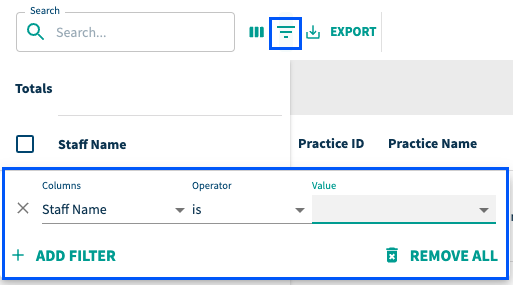
Read more on filters (add link here) to understand how to add multiple filters.
Work period chips live along the top and filter the table as well.
 By default, all chips are selected. Deselecting a chip will remove approvals from that work period out of the table. Deselecting the 'All' chip and selecting a work period will filter the table to only show approvals that fall within that work period. If the all chip is selected, clicking the +# more will deselect all chips.
Export:
Clicking the export button will download the information shown on the table into a CSV file.
You can utilize the checkboxes to pull information for specific approvals if you are not wanting to download the table as a whole.
The columns displayed on the table is what is pulled into the CSV.
*Please note that if you choose to manage columns on the table, that will directly affect what is pulled into the export. The more columns added to the table, the more pulled into the export. Any columns removed from the table will not appear in the export.
