
Overview
Roster - the list of providers who are associated with a practice, including providers who are:
- new and under review
- pending privileges
- ready to schedule
Submit a provider
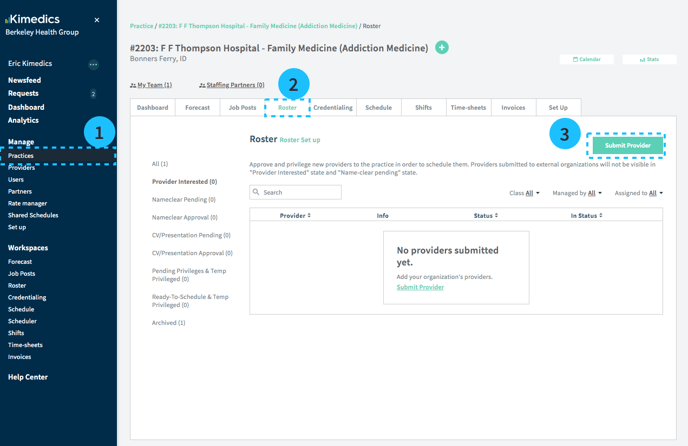
- Practices / Select practice where you would like to add selected provider
- Click on the Roster tab
- Press Add Provider
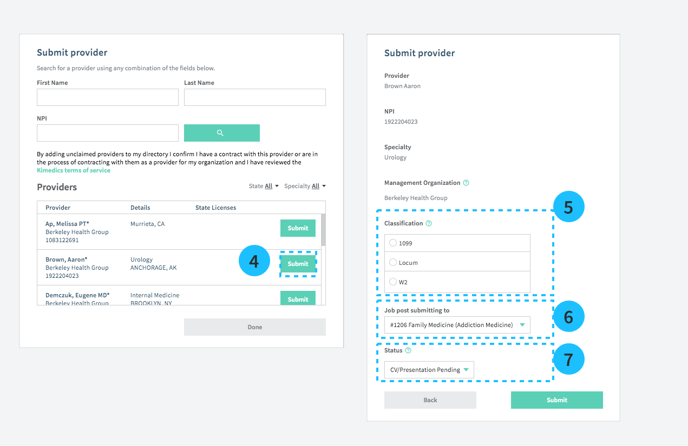
- Select a provider to submit. You can search by NPI or name.
- Select the Classification as 1099, Locum, W2
- Select the Job post (if relevant)
- Select the Status
Provider already submitted error
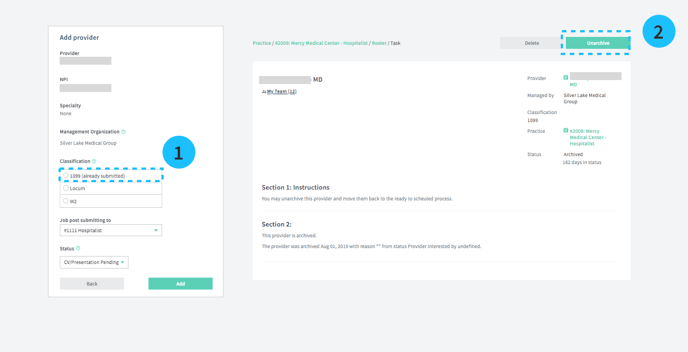
If you see already submitted on the Classification when you are submitting a provider (see 1 above), it means they have already been submitted to the practice.
- First check your roster to find their name.
- If the provider is archived and should be active, select their row and Unarchive (see 2 above)
Archive a provider
- Select Practices from the left sidebar
- Click view on the practice where you would like to archive a provider
- Click on the Roster tab
- Find the provider you would like to archive on your provider list and navigate to the status column. Click on the arrow to open the dropdown status menu and select archived.
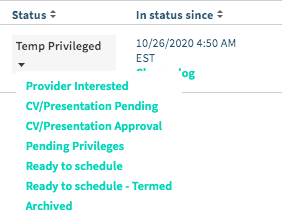
- You can also update the status of a provider by entering the Roster workspace and following step 4 listed above.